
Contents:
- Core Concepts
- How to setup Conversion Booster V2
- Conversion action definitions
- How are new and returning orders identified?
- Understanding the “New customers LTV (30/60/90 days)” conversions
- How to get the most out of the new conversion actions
Core Concepts
Browser vs Booster (why there are two)
-
Browser conversions are recorded by the standard Google Ads website conversion tag in the shopper’s browser.
-
Booster conversions are additional purchases we send server-side/offline when we can match an order back to a Google Ads click (e.g. we have a Google click ID, like GCLID/GBRAID/WBRAID), but the browser tag didn’t capture it (ad blockers, tag doesn't load correctly, cross-domain checkout, etc.).
-
To avoid “double sending”, we compare transaction/order IDs and only “boost” orders that were not already recorded by the Browser conversion
Revenue vs Gross Profit
-
Revenue = the order value you send to Google Ads as conversion value.
-
Gross Profit = the order value after costs (as defined/configured in your ProfitMetrics setup), sent as conversion value.
How to setup Conversion Booster V2
- Go to Integrations > Connections > Conversion Booster
- Follow the setup wizard (5 min setup time)
- NOTE: If you use MCC level tracking, only select the MCC level account for the Conversion Booster. In the previous step where Google Ads was connected, make sure you connected MCC account AND each related sub-account.
- Once the setup wizard is completed, the Conversion Booster has been connected and will begin enriching Google Ads with profit data and revenue data.
Configuration in ProfitMetrics
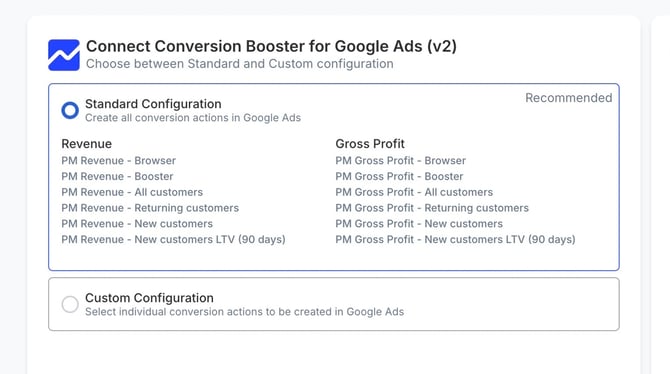
You can set up the Google Ads conversion actions via ProfitMetrics in two ways:
-
using our standard configuration (recommended), or
-
using a custom configuration.
The only difference between these options is which conversion action tags are created. All other customisation options can still be applied in the later steps.
Configuring tax settings for revenue conversion actions
You can use the toggle switch here to decide whether you want to include tax/VAT in the revenue value ProfitMetrics sends to your 'PM Revenue' conversion actions. We would recommend matching this to your existing conversion tracking, or in the case of Google Ads conversion tracking being completely new, match this setting to how you handle tax/VAT in other platform reporting.

Setting your average profit margin
The the 'PM Gross Profit - Browser' conversion action loads on the website, we recommend initially providing Google with an estimate of the gross profit, based on a simple multiplication:
revenue from website x average order profit margin
You can set the average order profit margin as a percentage value here, which will automatically populate in conversion tracking code created automatically in later steps:

This only needs to be an estimate as ProfitMetrics will update the conversion value a few hours after the order has been received and the true gross profit calculated.
Enabling Enhanced Conversions for web
By enabling Enhanced Conversions for web, ProfitMetrics will send additional user-provided data (e.g. email address) to your conversions recorded by the 'PM Browser' conversion actions. This can be useful if you're not already sending user-provided data in the tags from the order confirmation page.
When enabling this feature it is essential that the method of sending user-provided data to Google is set to 'Google Ads API, as outlined in this Knowledge Base article.
Note: If you already have Enhanced Conversions enabled for your existing primary conversion action (not ProfitMetrics) and the provision of user-provided data is via Google Tag Manager or the Google Tag, we do not recommend enabling Enhanced Conversions in ProfitMetrics or changing the setting to 'Google Ads API'. Changing this setting may prevent Enhanced Conversions working correctly on your existing primary conversion action.

Enabling Enhanced Conversions for leads
By enabling Enhanced Conversions for leads, ProfitMetrics will send additional user-provided data (e.g. email address) to your conversions recorded by all the offline conversion actions (everything other than 'PM Browser'). This can boost performance of these conversion actions, allowing for cross-device attribution and attribution from engaged views in YouTube.
When enabling this feature, you must also configure Enhanced Conversions for Leads as outlined in this Knowledge Base article.

Disabling/enabling conversion actions
You can enable and disable conversion actions from within the 'Custom' configuration, or any time later in the section shown below.
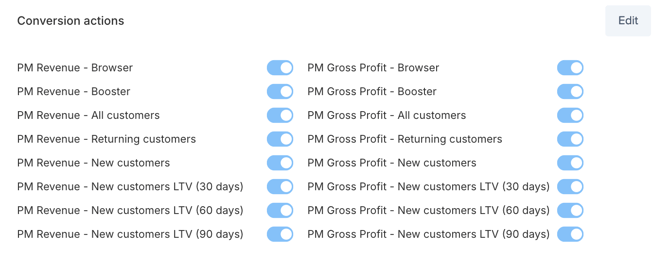
When enabled for the first time, ProfitMetrics will automatically create the conversion action in Google Ads for you, set as secondary so as not to interfere with your existing bid strategy. The conversion window will be set to 30-day click, 1-day view and 3-day enagaged-view by default and this can be changed from within Google Ads as required.
When you disable a conversion action, this will prevent ProfitMetrics sending any further data to this end point. If you wish to remove a conversion action from Google Ads completely it must be deleted from within Google Ads.
Revenue Conversion action definitions
PM Revenue – Browser
Revenue from purchases recorded by the Google Ads conversion tag in the customer's browser (standard website tag). Fires on the thank you page.
Method: Browser-side, fires on thank you page
Value: Revenue incl. or excl. VAT/tax
Note: Paired with PM Revenue – Booster to cover missed fires.
PM Revenue – Booster
Additional revenue purchases sent server-side/offline when an order can be matched to a Google Ads click, excluding orders already captured by the Browser conversion (using transaction ID checks).
Method: Server-side fallback
Value: Revenue incl. or excl. VAT/tax
Note: Recovers conversions missed by the browser tag, ad blocker blocks, or failed thank you page fires.
PM Revenue – All customers
Revenue from all attributed purchases (new + returning) sent by ProfitMetrics/CB2. Use this when you want Google Ads to optimise for total purchase revenue.
Method: Server-side
Value: Revenue incl. or excl. VAT/tax
Customer type: All, new and returning (validated on backend historic customer list)
PM Revenue – Returning customers
Revenue from repeat purchases only (2nd order and beyond). This conversion excludes a customer's first-ever order.
Method: Server-side
Value: Revenue incl. or excl. VAT/tax
Customer type: Returning only (validated on backend historic customer list)
PM Revenue – New customers
Revenue from a customer's first-ever purchase only (first order).
Method: Server-side
Value: Revenue incl. or excl. VAT/tax
Customer type: New only (validated on backend historic customer list)
PM Revenue – New customers LTV (30 days)
Cumulative revenue from a new customer cohort, counting all purchases made from day 0 up to day 30 after the customer's first order (includes the first order and any repeat orders within 30 days).
Method: Server-side
Value: Revenue incl. or excl. VAT/tax
Customer type: New only (validated on backend historic customer list)
LTV window: 30 days — subsequent orders attributed to original first-touch Google campaign
PM Revenue – New customers LTV (60 days)
Cumulative revenue from a new customer cohort, counting purchases from day 0 to day 60 after the first order (includes orders from the first 30 days as well).
Method: Server-side
Value: Revenue incl. or excl. VAT/tax=
Customer type: New only (validated on backend historic customer list)
LTV window: 60 days — subsequent orders attributed to original first-touch Google campaign
PM Revenue – New customers LTV (90 days)
Cumulative revenue from a new customer cohort, counting purchases from day 0 to day 90 after the first order (includes orders from the first 60 days as well).
Method: Server-side
Value: Revenue incl. or excl. VAT/tax
Customer type: New only (validated on backend historic customer list)
LTV window: 90 days — subsequent orders attributed to original first-touch Google campaign
Gross Profit Conversion action definitions
PM Gross Profit – Browser
Gross profit from purchases recorded by the Google Ads conversion tag in the customer's browser (standard website tag). Fires on the thank you page.
Method: Browser-side, fires on thank you page
Value: Real order gross profit (sent hidden server-side)
Note: Paired with PM Gross Profit – Booster to cover missed fires.
PM Gross Profit – Booster
Additional gross profit purchases sent server-side/offline when an order can be matched to a Google Ads click, excluding orders already captured by the Browser conversion (using transaction ID checks).
Method: Server-side fallback
Value: Real order gross profit
Note: Recovers conversions missed by the browser tag, ad blocker blocks, or failed thank you page fires.
PM Gross Profit – All customers
Gross profit from all attributed purchases (new + returning) sent by ProfitMetrics/CB2. Use this when you want Google Ads to optimise for total purchase profit.
Method: Server-side
Value: Real order gross profit
Customer type: All, new and returning (validated on backend historic customer list)
PM Gross Profit – Returning customers
Gross profit from repeat purchases only (2nd order and beyond). This conversion excludes a customer's first-ever order.
Method: Server-side
Value: Real order gross profit
Customer type: Returning only (validated on backend historic customer list)
PM Gross Profit – New customers
Gross profit from a customer's first-ever purchase only (first order).
Method: Server-side
Value: Real order gross profit
Customer type: New only (validated on backend historic customer list)
PM Gross Profit – New customers LTV (30 days)
Cumulative gross profit from a new customer cohort, counting purchases from day 0 to day 30 after the first order.
Method: Server-side
Value: Real order gross profit
Customer type: New only (validated on backend historic customer list)
LTV window: 30 days — subsequent orders attributed to original first-touch Google campaign
PM Gross Profit – New customers LTV (60 days)
Cumulative gross profit from a new customer cohort, counting purchases from day 0 to day 60 after the first order.
Method: Server-side
Value: Real order gross profit
Customer type: New only (validated on backend historic customer list)
LTV window: 60 days — subsequent orders attributed to original first-touch Google campaign
PM Gross Profit – New customers LTV (90 days)
Cumulative gross profit from a new customer cohort, counting purchases from day 0 to day 90 after the first order.
Method: Server-side
Value: Real order gross profit
Customer type: New only (validated on backend historic customer list)
LTV window: 90 days — subsequent orders attributed to original first-touch Google campaign
By using the Browser and Booster conversion actions together we maximise the number of conversions that can be attributed to your campaigns.
The Browser conversion action will show conversions from clicks, views and engaged-views, as well as additional modelled conversions where you have Google's Consent Mode installed.
The Booster conversion action will show click and engaged-view conversions, but not view or modelled conversions. The Booster can pick up many additional conversions where the Browser tag failed to load on the your order confirmation page.
How are new and returning customers identified?
When an order is sent to ProfitMetrics, we securely store the customer’s email address and use it to determine whether the order is from a new or an existing customer.
We then classify the order as either New customer or Returning customer before sending the data to Google Ads. The sum of New customers and Returning customers will always match the value shown under All customers.
By default, the customer list is built from the moment you start sending orders to ProfitMetrics. To improve the accuracy of new/returning customer identification from day one, you can upload your full historical customer list to ProfitMetrics.
Understanding the “New customers LTV (30/60/90 days)” conversions
The New customers LTV conversion actions help you measure (and optionally optimise toward) the cumulative value generated by customers after their first purchase. Instead of only recording the first order, these conversions add up all purchases made by that same customer within a set time window — 30, 60, or 90 days from their first order date. This means the LTV 60 conversion includes everything counted in LTV 30, and LTV 90 includes everything counted in LTV 60. In simple terms: these conversions show how much revenue or profit your new customers generate over time, not just on day one.
If a customer:
-
Day 0: £100 order (first order)
-
Day 20: £50 order
-
Day 70: £30 order
Then:
-
New customers records: £100 (first order only)
-
Returning customers records: £50 + £30 (repeat orders)
-
LTV (30 days) records: £100 + £50
-
LTV (60 days) records: £100 + £50
-
LTV (90 days) records: £100 + £50 + £30
The below illustrative examples show how this can look in reality.
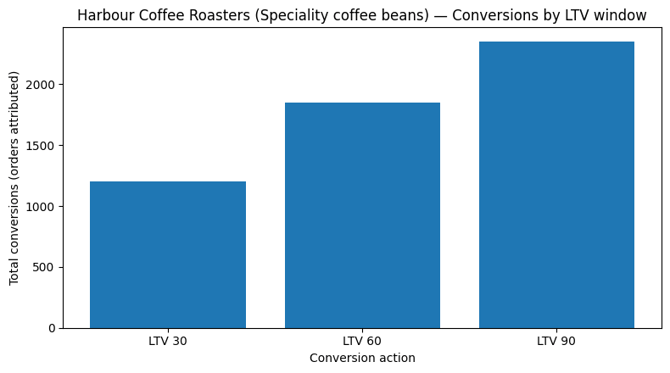
Example 1: Replenishment product (strong repeat)
Harbour Coffee Roasters (speciality coffee beans + pods)
What it looks like:
-
LTV 30: 1,200 conversions
-
LTV 60: 1,850 conversions
-
LTV 90: 2,350 conversions
How to interpret it:
-
Big jump from 30 → 60 → 90 usually means customers reorder regularly (monthly-ish cadence).
-
Often seen with consumables: coffee, pet food, supplements, skincare, razor blades, etc.
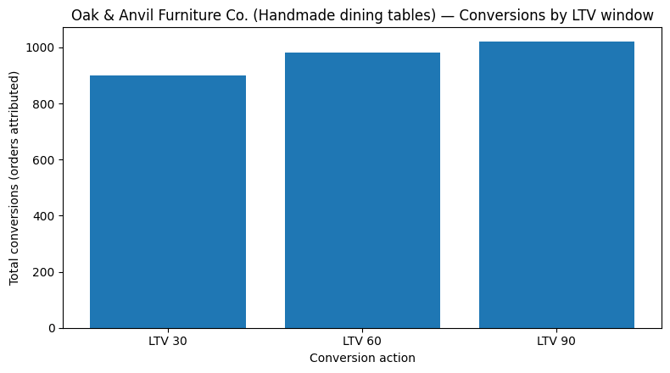
Example 2: High-consideration / infrequent purchase (weak repeat)
Oak & Anvil Furniture Co. (handmade dining tables + cabinets)
What it looks like:
-
LTV 30: 900 conversions
-
LTV 60: 980 conversions
-
LTV 90: 1,020 conversions
How to interpret it:
-
Small lift over time suggests most customers don’t repurchase quickly (or at all within 90 days).
-
Typical for big-ticket items: furniture, mattresses, high-end appliances, premium electronics.
How to get the most out of the new Conversion Actions
By activating all the best practice tracking tools from Google Ads and closing the gap from inefficient client-side tracking, the Conversion Booster will provide your Google Ads account with the best data quantity and quality.
To activate the data, we recommend:
1. First, create custom columns to monitor the performance of your campaigns with the new data.
See how to create custom columns in Google Ads here.
When tracking both gross profit and revenue with the Conversion Booster for Google Ads, we recommend setting up custom columns for both sets. The conversion booster tracks 17% more conversion on average compared to standard Google Ads tracking. If you compare the Conversion Booster tracking of gross profit to the existing standard Google Ads tracking or revenue, it is likely to be misleading.
2. Once the Conversion Booster reaches 200-500 attributed conversions, you can make the switch to POAS bidding and activate the data for Smart Bidding and Performance Max campaigns.
See how to switch to POAS bidding here
When using the Conversion Booster, remember to activate both conversion actions of the set (gross profit or revenue) you choose, by setting them both as primary.