
Part 1: Important Information
Part 2: Create custom columns for the custom events
Part 1: Important Information
These are the events that we create for both Gross Profit and Revenue:
- PMGrossProfit
- PMGrossProfitNewCustomers
- PMGrossProfitReturningCustomers
- PMGrossProfitNewCustomersLTV28Days
- PMRevenue
- PMRevenueNewCustomers
- PMRevenueReturningCustomers
- PMRevenueNewCustomersLTV28Days
Please note: To make these custom events visible in Ads Manager and available for creating custom columns, they must first be activated.
Meta requires this to be done through a small workaround:
You need to create a test Sales campaign with 8 ad sets, each optimised for one of the custom events LISTED ABOVE. We recommend assigning a very small budget (for example, €1–€2 per ad set or Campaign level) and letting the campaign run for 1–2 hours.
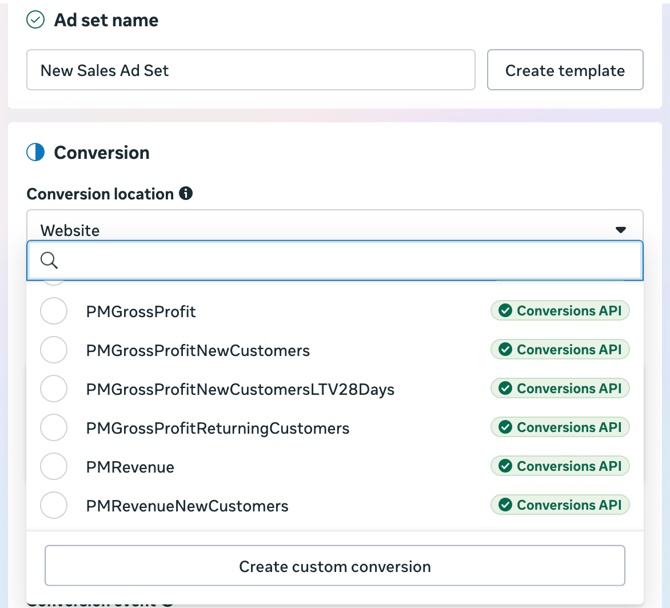
This short run is enough for Meta to register that these events are actively being used. Once Meta receives this signal, the events will start appearing in Ads Manager, and you’ll be able to create custom columns for them.
Unfortunately, this step is required by Meta and is currently the only way to activate custom server-side events for reporting and column creation.
Please follow the example below as a reference. In this guide, Completed Registration is used as an example event, but the same exact logic applies when creating custom columns for any ProfitMetrics custom event. Simply replace the example event with the specific custom event you want to analyse (for example, PM Revenue, PM Gross Profit, PM New Customers, or PM Returning Customers).
Keep in mind that the Gross Profit After Ad Spend metric should only be created for gross profit events, as this metric is not relevant for revenue-based events. For revenue events, only conversion count, conversion value, and ROAS are required.
Part 2: Create custom columns for the custom events
Please follow the example below as a reference. In this guide, Completed Registration is used as an example event, but the same exact logic applies when creating custom columns for any ProfitMetrics custom event.
Simply replace the example event with the specific custom event you want to analyze (for example, PM Revenue, PM Gross Profit, PM New Customers, or PM Returning Customers).
Keep in mind that Gross Profit After Ad Spend metric should only be created for gross profit events, as this metric is not relevant for revenue-based events. For revenue events, only conversion count, conversion value, and ROAS are required.
- Go to https://adsmanager.facebook.com/
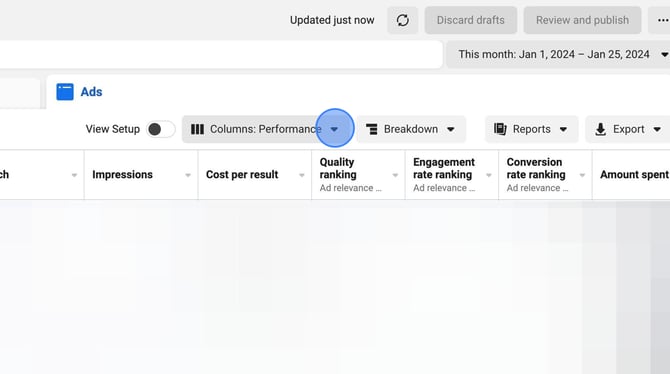
- Click the "Columns" dropdown
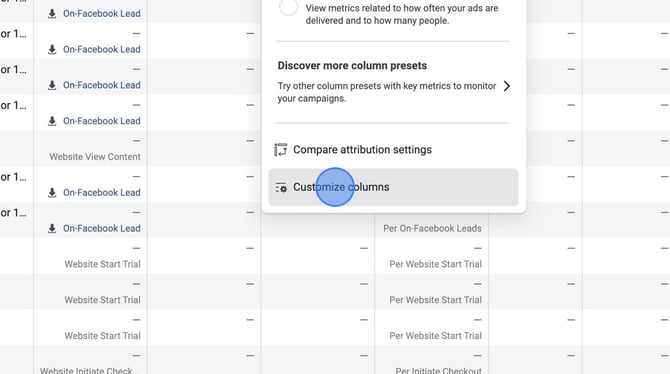
- Click "Customise columns"
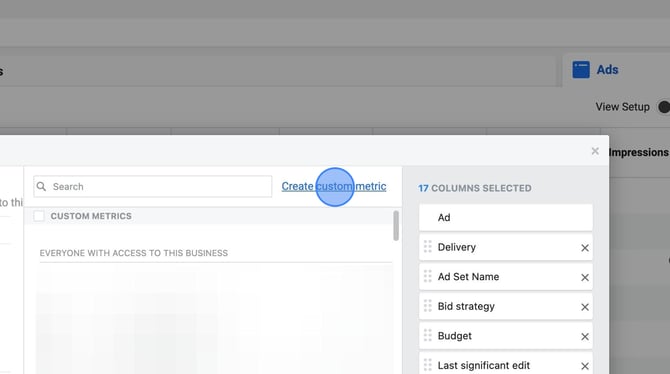
- Click "Create custom metric"
- Under Name, type "PM Conversions"
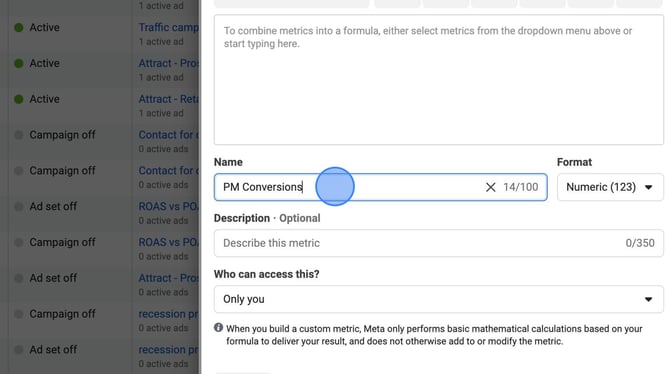
- Click "Select metric" dropdown
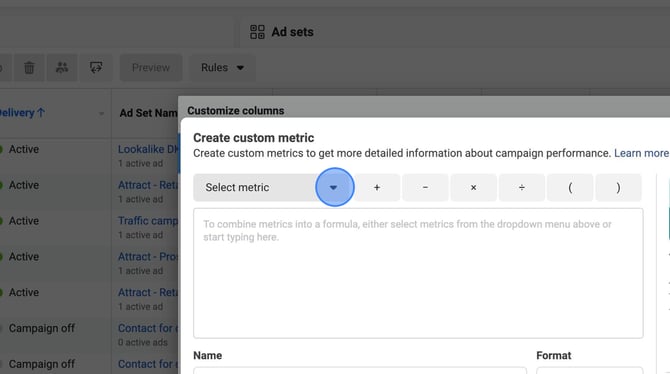
- Select:
(A) "Registrations Completed conversion value" or "Leads conversion value"
(B) or, "Purchases conversion value"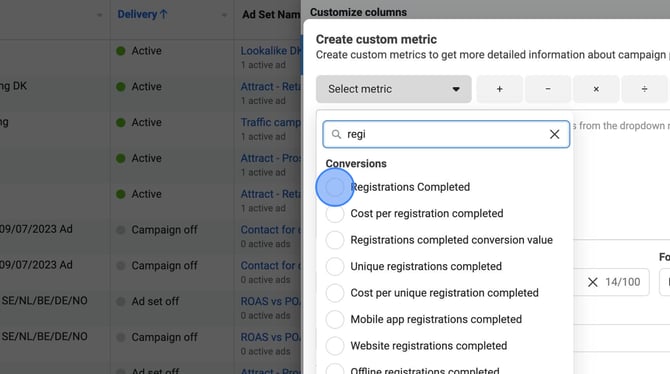
- Leave the Format set to "Numeric"
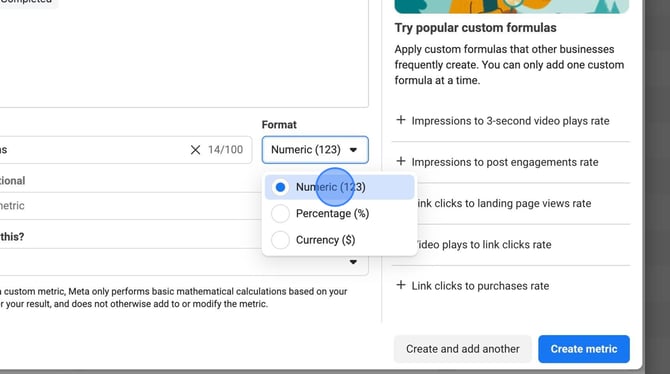
- Click the "Who can access this?" dropdown and select "Everyone with access to this Business."
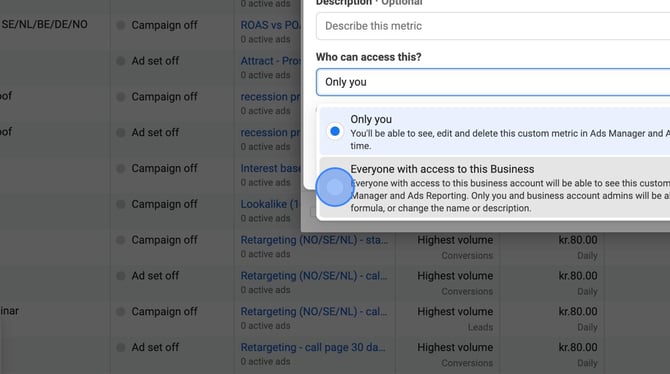
- Click "Create metric"
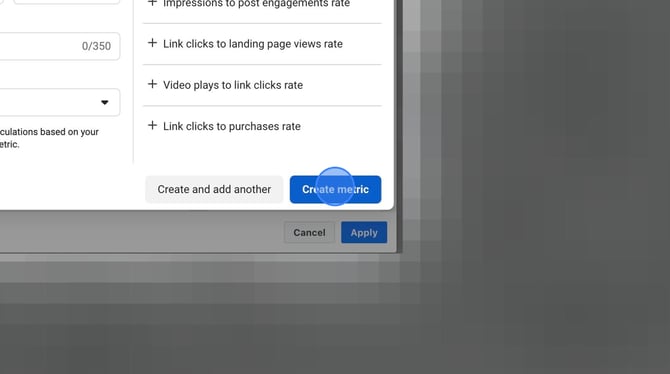
- Click "Create custom metric"
- Under Name, type "PM Gross Profit"
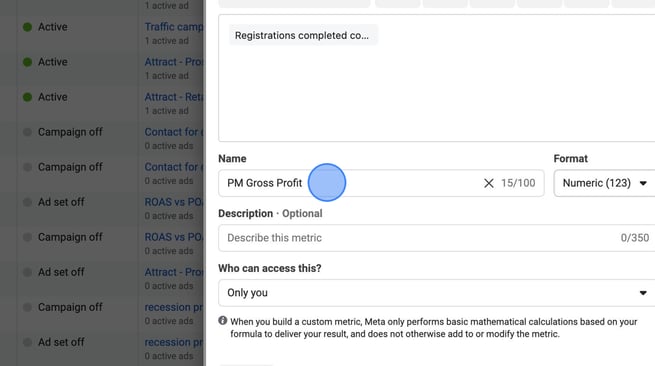
- Select:
(A) "Registrations Completed conversion value" or "Leads conversion value"
(B) or, "Purchases conversion value"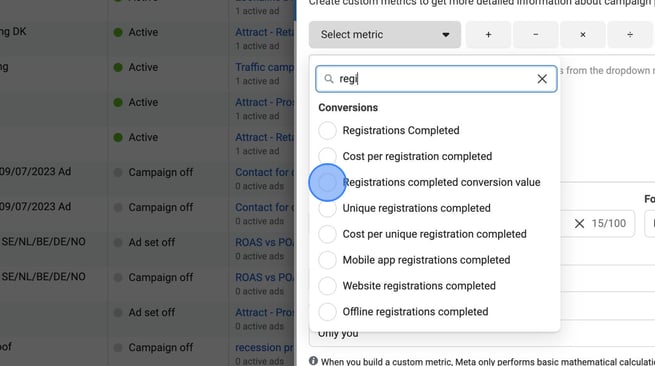
- Click "Format" dropdown and select "Currency"
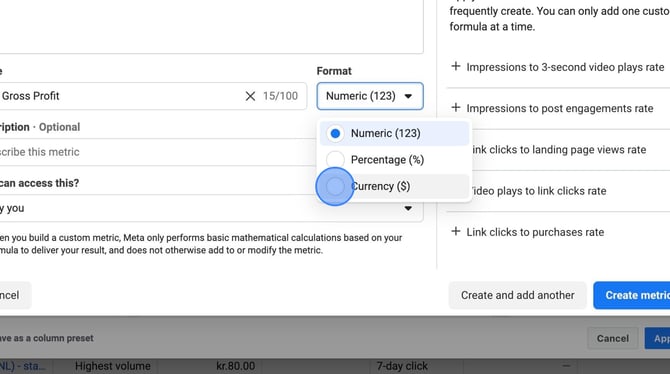
- Click the "Who can access this?" dropdown and select "Everyone with access to this Business".
- Click “Create metric“
- Click "Create custom metric"
- Under Name, type "PM Gross Profit After Ad Spend"
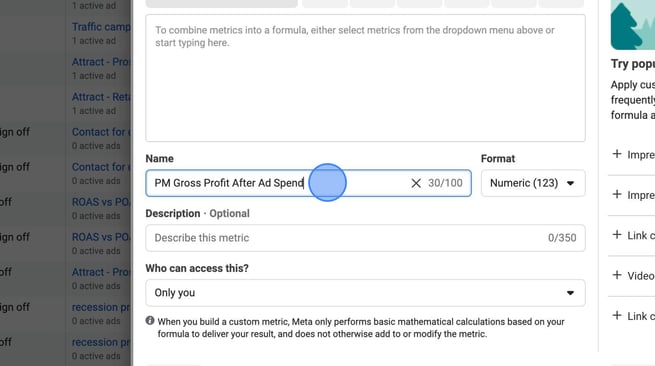
- Click "Select metric" dropdown
- Select:
(A) "Registrations Completed conversion value" or "Leads conversion value"
(B) or, "Purchases conversion value" - Click "- minus "
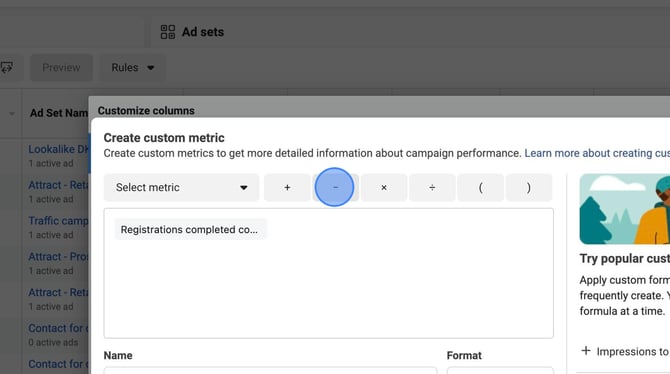
- Click "Select metric" dropdown
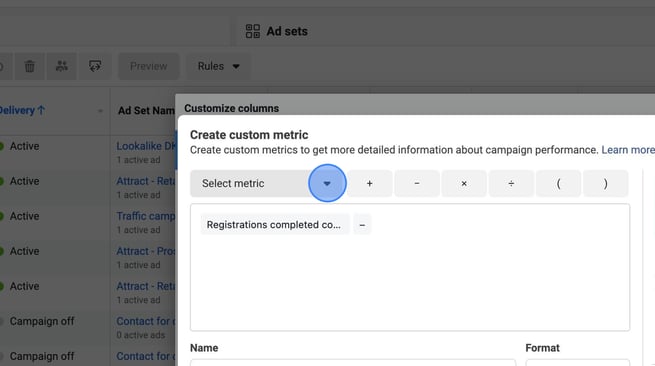
- Select "Amount spent"
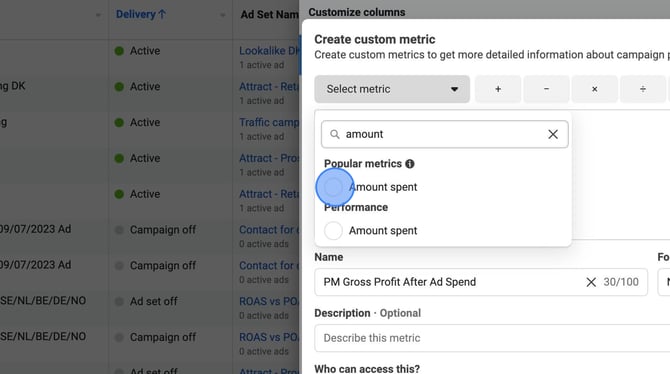
- Click "Format" dropdown and select "Currency"
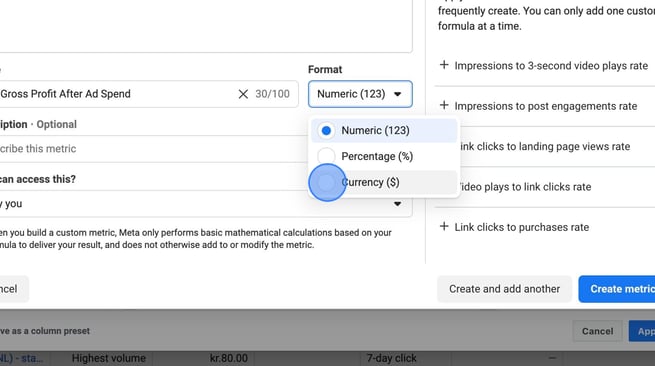
- Click the "Who can access this?" dropdown and select "Everyone with access to this Business".
- Click "Create metric"
- Click "Create custom metric"
- Under Name, type "PM POAS"
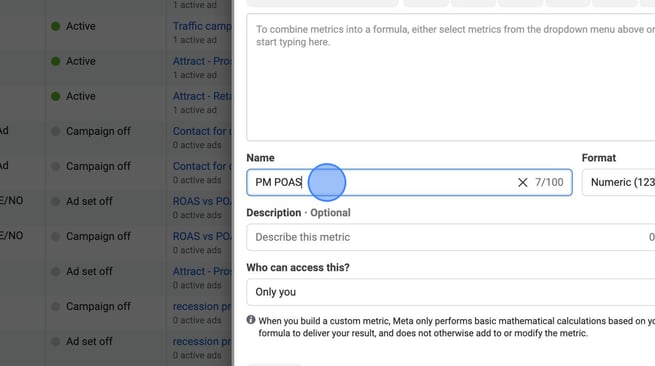
- Click "Select metric" dropdown
- Select:
(A) "Registrations Completed conversion value" or "Leads conversion value"
(B) or, "Purchases conversion value" - Click "Divide"
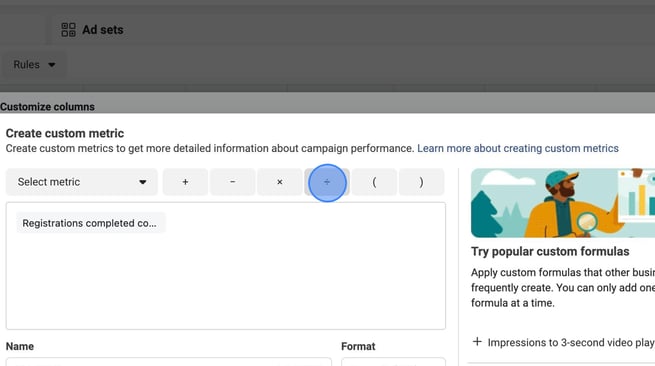
- Click "Select metric" dropdown
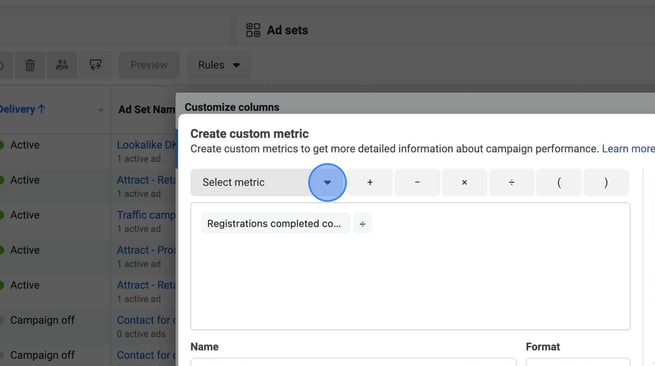
- Select "Amount spend"
- Leave the Format set to "Numeric"
- Click the "Who can access this?" dropdown and select "Everyone with access to this Business".
- Click "Create metric"
- Activate your columns by selecting them from the list. You might need to refresh the page to see them all
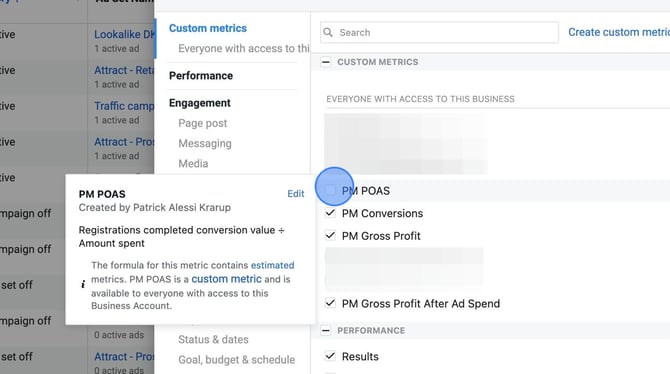
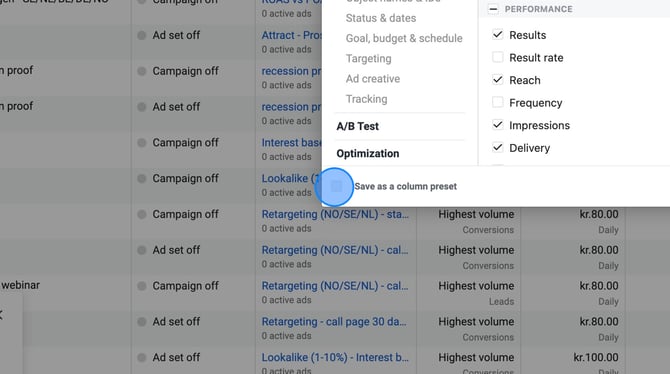
- Check "Save as column preset" and name it "ProfitMetrics"
- Click "Apply"
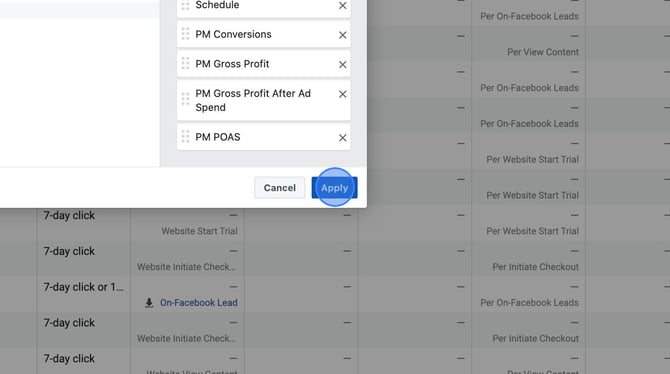
That's it. You have now completed the integration and set up custom columns.
Summary of default setup:
- Go to Facebook Account -> Ads Manager -> Columns -> Customize columns.
- Create columns (4 Columns):
- Name: PM Conversions
Format: Numeric(1,2,3)
Description: Empty
Formula: Registration Completed (If you chose Complete Registration)
Access: Everyone
Click: Create Metric - Name: PM Gross Profit
Format: Currency($)
Description: Empty
Formula: Registration Completed Conversion Value
Access: Everyone
Click: Create Metric - Name: PM Gross Profit After Ad Spend
Format: Currency($)
Description: Empty
Formula: Registration Completed Conversion Value (- minus) Amount Spend
Access: Everyone
Click: Create Metric - Name: PM POAS
Format: Numeric(1,2,3)
Description: Empty
Formula: Registration Completed Conversion Value (%-divide) Amount Spend
Access: Everyone
Click: Create Metric
- Name: PM Conversions
Language Differences:
Completed Registrations (English, Dutch, Danish):
Registration completed = Voltooide registraties = Fuldførte registreringer
Registration completed conversion value = Conversiewaarde voltooide registraties = Konverteringsværdi for fuldførte registreringer
Amount spend = Besteed bedrag = Brugt beløb
Leads (English, Dutch, Danish):
Leads = Leads = Leads
Leads conversion value = Conversiewaarde leads = Koverteringsværdi fra leads
Amount spend = Besteed bedrag = Brugt beløb