---
title: How to migrate your ProfitMetrics website to Shopify
description: How to Migrate Your ProfitMetrics website to Shopify
---
[Skip to content](https://knowledge.profitmetrics.io/how-to-migrate-your-profitmetrics-website-to-shopify#main-content)
[](https://knowledge.profitmetrics.io/?hsLang=en)
Open main navigation
Close main navigation
- [Contact Support](https://knowledge.profitmetrics.io/kb-ticket/new)
[Contact Support](https://knowledge.profitmetrics.io/kb-ticket/new?hsLang=en)
How can we help you?
- There are no suggestions because the search field is empty.
1. [Knowledge base](https://knowledge.profitmetrics.io/?hsLang=en)
2. [E-commerce Platforms](https://knowledge.profitmetrics.io/e-commerce-platforms?hsLang=en)
3. [Shopify](https://knowledge.profitmetrics.io/e-commerce-platforms?hsLang=en#shopify)
# How to migrate your ProfitMetrics website to Shopify
## Use this guide if you are an existing ProfitMetrics customer WITH ONE WEBSITE switching your store from another platform (WooCommerce, Lightspeed, Magento, DanDomain, or similar) to Shopify. Follow the steps in order to avoid breaking your tracking, losing data, or creating order import issues.
**NOTE:** This guide assumes you already have a ProfitMetrics account and a working setup on your current platform. If you are new to ProfitMetrics, see [How to install ProfitMetrics in Shopify](https://knowledge.profitmetrics.io/how-to-install-the-profitmetrics-app-in-shopify?hsLang=en)
**SHOPIFY MARKETS**: Please note that all orders for Shopify Markets will come into the main ProfitMetrics website for this Shopify account. We do not currently support separate PM websites for separate Shopify Markets.
If you have more than one website:
[How to Migrate One of Your Existing ProfitMetrics Websites to Shopify](https://knowledge.profitmetrics.io/how-to-migrate-an-existing-website-to-shopify?hsLang=en)
If you are just getting started with ProfitMetrics in Shopify and not migrating:
[How to install the ProfitMetrics App in Shopify](https://knowledge.profitmetrics.io/how-to-install-the-profitmetrics-app-in-shopify?hsLang=en)
---
[Section 1: Before you Switch](https://knowledge.profitmetrics.io/how-to-migrate-your-profitmetrics-website-to-shopify#section1)
[1.1](https://knowledge.profitmetrics.io/how-to-migrate-your-profitmetrics-website-to-shopify#section1.1)[Identify your first order ID](https://knowledge.profitmetrics.io/how-to-migrate-your-profitmetrics-website-to-shopify#section1.1)
[1.2 Verify your VAT/Tax settings in Shopify](https://knowledge.profitmetrics.io/how-to-migrate-your-profitmetrics-website-to-shopify#section1.2)
[1.3 Handle historical orders](https://knowledge.profitmetrics.io/how-to-migrate-your-profitmetrics-website-to-shopify#section1.3)
[Section 2: Migration Day Checklist](https://knowledge.profitmetrics.io/how-to-migrate-your-profitmetrics-website-to-shopify#section2)
[2.1 Switch the Platform Connection to Shopify](https://knowledge.profitmetrics.io/how-to-migrate-your-profitmetrics-website-to-shopify#section2.1)
[2.2 Reinstall the custom pixel](https://knowledge.profitmetrics.io/how-to-migrate-your-profitmetrics-website-to-shopify#section2.2)
[2.3 Reconnect Your Ad Channel Integrations](https://knowledge.profitmetrics.io/how-to-migrate-your-profitmetrics-website-to-shopify#section2.3)
[2.4 Add the Consent API Script](https://knowledge.profitmetrics.io/how-to-migrate-your-profitmetrics-website-to-shopify#section2.4)
[Section 3: After Migration Verification](https://knowledge.profitmetrics.io/how-to-migrate-your-profitmetrics-website-to-shopify#section3)
[3.1 Verify Transaction Counts Match](https://knowledge.profitmetrics.io/how-to-migrate-your-profitmetrics-website-to-shopify#section3.1)
[3.2 Check the Paid Amount on Orders](https://knowledge.profitmetrics.io/how-to-migrate-your-profitmetrics-website-to-shopify#section3.2)
[3.3 Verify Shipping and Payment Method Names](https://knowledge.profitmetrics.io/how-to-migrate-your-profitmetrics-website-to-shopify#section3.3)
[3.4 Check Cost of Goods and Currency](https://knowledge.profitmetrics.io/how-to-migrate-your-profitmetrics-website-to-shopify#section3.4)
---
### **Section 1: Before You Switch**
Complete these steps **before** you go live on Shopify. Skipping them is the most common cause of data problems after a migration.
#### 1. **Before you migrate: match your website URL**
**Do this first.** If the URL in ProfitMetrics doesn't match your new Shopify URL, ProfitMetrics creates a second website during the migration and your orders get split across two records.
1\. Go to Settings \> Websites in ProfitMetrics
2\. Open the website you're migrating
3\. Change the URL to your new Shopify URL (e.g. yourstore.myshopify.com)
4\. Save, then start the migration
Already migrated and have a duplicate website? Contact [support@profitmetrics.io](mailto:support@profitmetrics.io). We can help sort it out, but it's much quicker to prevent it than to fix it afterwards.
#### **2. Identify your first order ID**
**Using this to identify order ID conflicts is the single most important thing to do before migration.**
ProfitMetrics can only ever import an order ID once. All Shopify stores start at order 1000, so if your previous CMS also used an integer for an order ID, you may have duplicated order IDs (either now, or later when your order IDs catch up). When your new Shopify order ID catches up to your old system, ProfitMetrics will silently skip it — because that ID already exists. This can't be solved with an order ID prefix/suffix; **ProfitMetrics doesn't read prefix or suffix from Shopify.**
**The solution:**
- **Ask support@profitmetrics.io to rename old orders** (either ALL old orders, or a specific date range if you can identify one). We can add a prefix to orders we've already imported so they won't trigger a match with new Shopify orders.
- **IMPORTANT:** If you plan to import historical orders from your old platform into Shopify, make sure to add the tag **pm\_exclude** to those orders before they sync. See Section 1.3 below: Handle Historical Orders
#### **3. Verify Your VAT / Tax Settings in Shopify**
ProfitMetrics calculates profit by subtracting VAT/tax from your revenue. If tax is not configured correctly in Shopify before migration, your revenue and profit figures will be wrong from day one.
**Before going live, check the following:**
- Confirm that your VAT/tax rates are set up correctly in Shopify under Settings \> Taxes and duties.
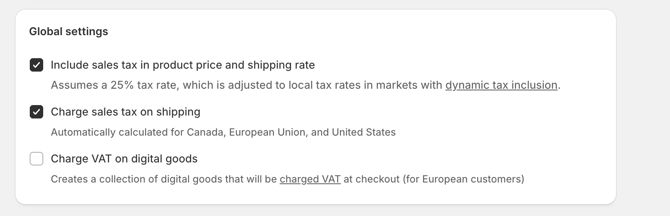
- Make sure each product is marked as taxable. In Shopify, go to each product page and check that the **"Charge tax on this product"** checkbox is ticked. If products are not marked as taxable, Shopify will not include VAT in the order total, and ProfitMetrics will record the wrong paid amount.
**NOTE: See more details here:** [How to Configure Tax Settings in Shopify Admin](https://knowledge.profitmetrics.io/shopify-configure-tax-settings-in-shopify-admin?hsLang=en).
After migration, you can verify your revenue numbers are correct by following the guide: [How to Compare Revenue in Shopify with ProfitMetrics.](https://knowledge.profitmetrics.io/how-to-compare-revenue-in-shopify-with-profitmetrics?hsLang=en)
#### **4. Handle Historical Orders**
If you plan to import old orders from your previous platform into Shopify (for example, for inventory or reporting purposes), ProfitMetrics will treat them as new orders and pull them into your account — potentially creating duplicates or inflating your revenue figures.
**To prevent this, add the tag pm\_exclude to all historical orders before they are synced to ProfitMetrics.**
**WARNING:** The tag must be spelled exactly **pm\_exclude** (all lowercase). ProfitMetrics will not recognise it if it is written differently. Add the tag before the orders are imported — it cannot be applied retroactively. If you need to auto-tag orders based on specific criteria, you can do this using Shopify Flow. See [How to Exclude POS Orders in Shopify Using Shopify Flow](https://knowledge.profitmetrics.io/how-to-exclude-pos-orders-in-shopify-using-shopify-flow?hsLang=en) as an example — your development team can adapt the same Flow logic for other order types.
### **Section 2: Migration Day Checklist**
Once your Shopify store is ready to go live, follow these steps to switch the platform connection in ProfitMetrics and restore all tracking.
#### **1. Switch the Platform Connection to Shopify**
1. Log in to [my.profitmetrics.io](https://my.profitmetrics.io/).
2. If you have more than one website, make sure you are on the correct one.
3. Go to **Integrations \> E-commerce Platforms \> Shopify.**
4. Click **"Migrate to Shopify"** and follow the on-screen steps.
5. Enter your **myshopify URL** in the field provided.
6. Click **"Install Shopify App"**. You will be redirected to Shopify.
7. Confirm you are installing into the correct store, then click **"Install"**.
8. Back in ProfitMetrics, click **"Create Subscription"**. You will be redirected to Shopify again.
9. Click **"Approve"** to confirm the subscription.
10. You will be redirected back to ProfitMetrics. Click **"Close Message"** if prompted. Your platform connection is now switched to Shopify. ✅
**IMPORTANT:** Contact support@profitmetrics.io after migration to cancel your previous credit card billing. Your subscription will now be managed through Shopify.
#### **2. Reinstall the Custom Pixel**
The ProfitMetrics tracking script must be reinstalled as a Shopify Custom Pixel. This is required for Conversion Booster and GA4 to work.
1. Go to **Integrations \> E-commerce Platforms \> Shopify.**
2. Click **"Open Script Setup Guide"** and follow the steps to install the App/Custom Pixel in Shopify.
#### **3. Reconnect Your Ad Channel Integrations**
Your Google Ads (Conversion Booster) and GA4 connections need to be updated with the new Shopify-based scripts. Go through each active integration:
**Conversion Booster for Google Ads**
1. Go to **Integrations \> Connections \> Conversion Booster for Google Ads.**
2. Click **"Open Script Setup Guide"** and follow the steps.
**Google Analytics 4**
1. Go to **Integrations \> Connections \> Google Analytics 4.**
2. Click **"Open Script Setup Guide"** and follow the steps.
#### **4. Add the Consent API Script**
If you use a Consent Management Platform (CMP), you also need to ensure your consent setup works correctly with the new pixel.
Follow the guide: [How to Check if Your Consent Management Platform (CMP) is Connected with Shopify Consent API](https://knowledge.profitmetrics.io/how-to-check-if-your-consent-management-platform-cmp-is-connected-with-shopify-consent-api?hsLang=en).
### **Section 3: After Migration Verification**
**This is the most important section.** The steps below are the most common source of post-migration issues. Check each one in the first 24–48 hours after going live.
#### **1. Verify Transaction Counts Match**
Compare the number of orders in ProfitMetrics against the number of orders in Shopify for the same date range.
- In ProfitMetrics, go to **Dashboard** and filter by the relevant date range.
- In Shopify, go to **Orders** and apply the same date filter.
- The totals should match. If orders are missing in ProfitMetrics, check that orders are authorised in Shopify and that there are no order ID conflicts with your previous platform.
- Please contact ProfitMetrics support with screenshots of orders in Shopify that haven't appeared in ProfitMetrics and we can look at what might be blocking them.
**NOTE:** It takes approximately 5–10 minutes for a new Shopify order to appear in ProfitMetrics. Do not check immediately after an order is placed.
#### **2. Check the Paid Amount on Orders**
Open a few recent orders in ProfitMetrics and inspect the **Paid Amount** field. This value should equal the total amount the customer paid, **including shipping** but **excluding VAT/tax**.
The formula is: **Paid Amount = Order total + Shipping − VAT/Tax**
If the Paid Amount looks incorrect (for example, it equals the full amount including VAT, or it is lower than expected), your tax settings in Shopify are likely not configured correctly.
**NOTE:** Follow the guide: [How to Compare Revenue in Shopify with ProfitMetrics](https://knowledge.profitmetrics.io/how-to-compare-revenue-in-shopify-with-profitmetrics?hsLang=en) to do a full revenue reconciliation and confirm your numbers are correct. To fix tax settings in Shopify, follow: [How to Configure Tax Settings in Shopify Admin](https://knowledge.profitmetrics.io/shopify-configure-tax-settings-in-shopify-admin?hsLang=en).
#### **3. Verify Shipping and Payment Method Names**
ProfitMetrics matches shipping and payment methods by name. The Shipping methods and payment methods in your Shopify store will differ from the names configured in ProfitMetrics from your old CMS, so all orders will fall back to the default margin.
**To check:** Open each of the pages below in ProfitMetrics and click the 'Download' button at the top right. Update them in ProfitMetrics at:
- [my.profitmetrics.io/customer/expenses\_shippingmethods.php](https://my.profitmetrics.io/customer/expenses_shippingmethods.php) (Shipping Methods)
- [my.profitmetrics.io/customer/expenses\_paymentmethods.php](https://my.profitmetrics.io/customer/expenses_paymentmethods.php) (Payment Methods)
**IMPORTANT:** Names are matched exactly, including capitalisation and spacing. Make sure the names in ProfitMetrics match what appears in Shopify orders. Payment methods use a 'begins with' logic and Shipping methods use 'contains' to match the name.
#### **4. Check Cost of Goods and Currency**
ProfitMetrics pulls cost of goods directly from Shopify and uses the currency configured for your website in ProfitMetrics. Open a few products in ProfitMetrics (**Products \> Product List**) and confirm that:
- The cost price is correct.
- The cost price is in the correct currency for your store.
This is especially important if you operate multiple Shopify stores (for example, stores for different countries). A common issue is that cost prices were imported into Shopify as numbers without a proper currency conversion, so the value is in the wrong currency.
**NOTE:** If it is not possible to get cost prices into Shopify in the correct currency, contact support@profitmetrics.io. ProfitMetrics has a function to override the currency and apply automatic exchange rate calculations. However, it is always best to ensure the cost price in Shopify is correct in the first place.
**That's it — your ProfitMetrics setup is migrated to Shopify. ✅**
#### **Related Articles**
- [How to Compare Revenue in Shopify with ProfitMetrics](https://knowledge.profitmetrics.io/how-to-compare-revenue-in-shopify-with-profitmetrics?hsLang=en)
- [How to Install the Shopify Custom Pixel for the ProfitMetrics Tracking Script and the Conversion Booster](https://knowledge.profitmetrics.io/shopify-custom-pixel-for-conversion-booster?hsLang=en)
- [How to Configure Tax Settings in Shopify Admin](https://knowledge.profitmetrics.io/shopify-configure-tax-settings-in-shopify-admin?hsLang=en)
[How to Exclude POS Orders in Shopify Using Shopify Flow](https://knowledge.profitmetrics.io/how-to-exclude-pos-orders-in-shopify-using-shopify-flow?hsLang=en)
- [Getting Started](https://knowledge.profitmetrics.io/getting-started?hsLang=en#main-content)
- [Learn the Basics](https://knowledge.profitmetrics.io/getting-started?hsLang=en#learn-the-basics)
- [Prepare for Onboarding](https://knowledge.profitmetrics.io/getting-started?hsLang=en#prepare-for-onboarding)
- [Account Setup](https://knowledge.profitmetrics.io/getting-started?hsLang=en#account-setup)
- [E-commerce Platforms](https://knowledge.profitmetrics.io/e-commerce-platforms?hsLang=en#main-content)
- [Shopify](https://knowledge.profitmetrics.io/e-commerce-platforms?hsLang=en#shopify)
- [WooCommerce](https://knowledge.profitmetrics.io/e-commerce-platforms?hsLang=en#woocommerce)
- [Magento](https://knowledge.profitmetrics.io/e-commerce-platforms?hsLang=en#magento)
- [PrestaShop](https://knowledge.profitmetrics.io/e-commerce-platforms?hsLang=en#prestashop)
- [BigCommerce](https://knowledge.profitmetrics.io/e-commerce-platforms?hsLang=en#bigcommerce)
- [Shopware](https://knowledge.profitmetrics.io/e-commerce-platforms?hsLang=en#shopware)
- [DanDomain & Related](https://knowledge.profitmetrics.io/e-commerce-platforms?hsLang=en#dandomain-related)
- [Universal Integration (Clientside)](https://knowledge.profitmetrics.io/e-commerce-platforms?hsLang=en#universal-integration-clientside)
- [Universal Integration (Server-side Hybrid)](https://knowledge.profitmetrics.io/e-commerce-platforms?hsLang=en#universal-integration-server-side-hybrid)
- [Other Platforms](https://knowledge.profitmetrics.io/e-commerce-platforms?hsLang=en#other-platforms)
- [Developer Documentation](https://knowledge.profitmetrics.io/e-commerce-platforms?hsLang=en#developer-documentation)
- [Ad Channels](https://knowledge.profitmetrics.io/ad-channels?hsLang=en#main-content)
- [Google Ads](https://knowledge.profitmetrics.io/ad-channels?hsLang=en#google-ads)
- [Meta (Facebook/Instagram)](https://knowledge.profitmetrics.io/ad-channels?hsLang=en#meta-facebook-instagram)
- [Microsoft Bing Ads](https://knowledge.profitmetrics.io/ad-channels?hsLang=en#microsoft-bing-ads)
- [Google Analytics 4](https://knowledge.profitmetrics.io/ad-channels?hsLang=en#google-analytics-4)
- [Partner-ads](https://knowledge.profitmetrics.io/ad-channels?hsLang=en#partner-ads)
- [Other Channel Configuration](https://knowledge.profitmetrics.io/ad-channels?hsLang=en#other-channel-configuration)
- [Tracking & Conversion Setup](https://knowledge.profitmetrics.io/tracking-conversion-setup?hsLang=en#main-content)
- [Overview](https://knowledge.profitmetrics.io/tracking-conversion-setup?hsLang=en#overview)
- [Conversion Booster for Google Ads](https://knowledge.profitmetrics.io/tracking-conversion-setup?hsLang=en#conversion-booster-for-google-ads)
- [Conversion Booster for Meta](https://knowledge.profitmetrics.io/tracking-conversion-setup?hsLang=en#conversion-booster-for-meta)
- [Conversion Booster Custom Pixels](https://knowledge.profitmetrics.io/tracking-conversion-setup?hsLang=en#conversion-booster-custom-pixels)
- [Enhanced Conversions](https://knowledge.profitmetrics.io/tracking-conversion-setup?hsLang=en#enhanced-conversions)
- [Shopping Booster](https://knowledge.profitmetrics.io/shopping-booster?hsLang=en#main-content)
- [Overview & Setup](https://knowledge.profitmetrics.io/shopping-booster?hsLang=en#overview-setup)
- [Supplemental Feeds](https://knowledge.profitmetrics.io/shopping-booster?hsLang=en#supplemental-feeds)
- [Campaigns & Labels](https://knowledge.profitmetrics.io/shopping-booster?hsLang=en#campaigns-labels)
- [Troubleshooting](https://knowledge.profitmetrics.io/shopping-booster?hsLang=en#troubleshooting)
- [Product Feed & Costs](https://knowledge.profitmetrics.io/product-feed-costs?hsLang=en#main-content)
- [Product Feed](https://knowledge.profitmetrics.io/product-feed-costs?hsLang=en#product-feed)
- [Shipping & Payment Costs](https://knowledge.profitmetrics.io/product-feed-costs?hsLang=en#shipping-payment-costs)
- [Expenses](https://knowledge.profitmetrics.io/product-feed-costs?hsLang=en#expenses)
- [Dashboard, Orders & Reporting](https://knowledge.profitmetrics.io/dashboard-orders-reporting?hsLang=en#main-content)
- [Dashboard & Orders](https://knowledge.profitmetrics.io/dashboard-orders-reporting?hsLang=en#dashboard-orders)
- [Looker Studio](https://knowledge.profitmetrics.io/dashboard-orders-reporting?hsLang=en#looker-studio)
- [Google BigQuery](https://knowledge.profitmetrics.io/dashboard-orders-reporting?hsLang=en#google-bigquery)
- [Account & Billing](https://knowledge.profitmetrics.io/account-billing?hsLang=en#main-content)
- [Users & Access](https://knowledge.profitmetrics.io/account-billing?hsLang=en#users-access)
- [Billing & Invoices](https://knowledge.profitmetrics.io/account-billing?hsLang=en#billing-invoices)
- [Privacy & Consent](https://knowledge.profitmetrics.io/privacy-consent?hsLang=en#main-content)
- [GDPR](https://knowledge.profitmetrics.io/privacy-consent?hsLang=en#gdpr)
- [Consent Management Platforms](https://knowledge.profitmetrics.io/privacy-consent?hsLang=en#consent-management-platforms)
- [Google Consent Mode](https://knowledge.profitmetrics.io/privacy-consent?hsLang=en#google-consent-mode)
- [For Agencies](https://knowledge.profitmetrics.io/for-agencies?hsLang=en#main-content)
- [Getting Started as an Agency](https://knowledge.profitmetrics.io/for-agencies?hsLang=en#getting-started-as-an-agency)
- [Agency Certification](https://knowledge.profitmetrics.io/for-agencies?hsLang=en#agency-certification)
- [Shopify](https://knowledge.profitmetrics.io/shopify?hsLang=en)
- [PrestaShop](https://knowledge.profitmetrics.io/prestashop?hsLang=en)
- [Google Ads](https://knowledge.profitmetrics.io/google-ads?hsLang=en#main-content)
- [troubleshoot](https://knowledge.profitmetrics.io/google-ads?hsLang=en#troubleshoot)
- [Meta (Facebook / Instagram)](https://knowledge.profitmetrics.io/meta-facebook-instagram?hsLang=en)
- [Uncategorized](https://knowledge.profitmetrics.io/uncategorized?hsLang=en)
- [Billing](https://knowledge.profitmetrics.io/billing?hsLang=en)
- [Google Sheets](https://knowledge.profitmetrics.io/google-sheets?hsLang=en)
- [Account](https://knowledge.profitmetrics.io/account?hsLang=en)
- [Ideal Shop](https://knowledge.profitmetrics.io/ideal-shop?hsLang=en)
[](https://profitmetrics.io)
[mailto:support@profitmetrics.io](mailto:support@profitmetrics.io)
Copyright © 2026, ProfitMetrics ApS