---
title: How To Grant Account Access
description: How To Grant Account Access
---
[Skip to content](https://knowledge.profitmetrics.io/how-to-grant-account-access-#main-content)
[](https://knowledge.profitmetrics.io/?hsLang=en)
Open main navigation
Close main navigation
- [Contact Support](https://knowledge.profitmetrics.io/kb-ticket/new)
[Contact Support](https://knowledge.profitmetrics.io/kb-ticket/new?hsLang=en)
How can we help you?
- There are no suggestions because the search field is empty.
1. [Knowledge base](https://knowledge.profitmetrics.io/?hsLang=en)
2. [Account & Billing](https://knowledge.profitmetrics.io/account-billing?hsLang=en)
# How To Grant Account Access
## Follow the steps below to grant access to your ProfitMetrics account.
---
Follow this article to learn how to edit or delete account access :[**How to edit or delete Account access**](https://knowledge.profitmetrics.io/how-to-edit-or-delete-account-access?hsLang=en)
---
##### **This guide will help you grant the correct permissions to your agency or business partner.**
**WARNING:** By granting access to your account, you are responsible for any activity performed by the person you’ve authorized. Make sure you fully trust the agency or partner before granting access, as this involves sensitive business information.
**NOTE 1:** There is no way to limit access. If you grant access to another account, they will have full access to all the data. Currently, it’s not possible to restrict access to specific sections of the account.
**NOTE 2:** Please ensure that the agency or user has an account created **before** granting access.
Before you begin, please ensure that your agency or colleague/partner has already created a ProfitMetrics account.
If they are from an agency, [click here to create an **Agency Account**](https://my.profitmetrics.io/signup_agency.php)
If you wish to add any other user to your account, [click here to create a **Business User** account](https://my.profitmetrics.io/signup_extrauser.php)
Without an active account, they won’t be able to receive access.
Please note: **We don't accept free emails. Please use your company email address.**
#### **Steps to Grant Access**
1. Log in to your **E-commerce Account**
Visit: [https://my.profitmetrics.io](https://my.profitmetrics.io)
*Note: It is not possible to grant access from an Agency or User account. Access can only be granted from a E-commerce Account.*
2. Click "**Account"**

3. Click **"Account Access"**

4. Click **"New"**

5. Select **"Account Type"** andchoose one option (this should match the account type created by the person requesting access):

6. Enter the **"Email"** Address
Type the email of the account you want to grant access to.

***Note:*** *An error message will appear if you select the incorrect account type. Please select "**Agency**" if you are adding your agency, and "**Business user**" if the user is an additional person you want to give access to.*
7. Set "**Expiration"** and select how long access should be granted.

8. Select a **"Role"** and choose the appropriate role for the user.
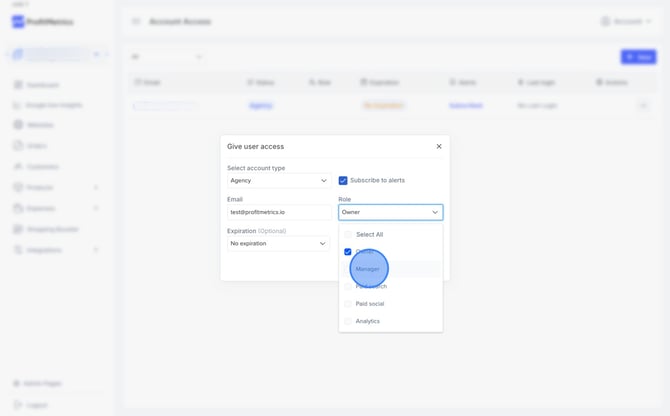
9. Add any Additional "**Notes"** you wish to include. *(Optional)*

10. **Subscribe to Alerts**
Ensure you are subscribed to alerts if needed. Uncheck the box if you don’t want alerts.

11. Click **"Save"**

---
- [Getting Started](https://knowledge.profitmetrics.io/getting-started?hsLang=en#main-content)
- [Learn the Basics](https://knowledge.profitmetrics.io/getting-started?hsLang=en#learn-the-basics)
- [Prepare for Onboarding](https://knowledge.profitmetrics.io/getting-started?hsLang=en#prepare-for-onboarding)
- [Account Setup](https://knowledge.profitmetrics.io/getting-started?hsLang=en#account-setup)
- [E-commerce Platforms](https://knowledge.profitmetrics.io/e-commerce-platforms?hsLang=en#main-content)
- [Shopify](https://knowledge.profitmetrics.io/e-commerce-platforms?hsLang=en#shopify)
- [WooCommerce](https://knowledge.profitmetrics.io/e-commerce-platforms?hsLang=en#woocommerce)
- [Magento](https://knowledge.profitmetrics.io/e-commerce-platforms?hsLang=en#magento)
- [PrestaShop](https://knowledge.profitmetrics.io/e-commerce-platforms?hsLang=en#prestashop)
- [BigCommerce](https://knowledge.profitmetrics.io/e-commerce-platforms?hsLang=en#bigcommerce)
- [Shopware](https://knowledge.profitmetrics.io/e-commerce-platforms?hsLang=en#shopware)
- [DanDomain & Related](https://knowledge.profitmetrics.io/e-commerce-platforms?hsLang=en#dandomain-related)
- [Universal Integration (Clientside)](https://knowledge.profitmetrics.io/e-commerce-platforms?hsLang=en#universal-integration-clientside)
- [Universal Integration (Server-side Hybrid)](https://knowledge.profitmetrics.io/e-commerce-platforms?hsLang=en#universal-integration-server-side-hybrid)
- [Other Platforms](https://knowledge.profitmetrics.io/e-commerce-platforms?hsLang=en#other-platforms)
- [Developer Documentation](https://knowledge.profitmetrics.io/e-commerce-platforms?hsLang=en#developer-documentation)
- [Ad Channels](https://knowledge.profitmetrics.io/ad-channels?hsLang=en#main-content)
- [Google Ads](https://knowledge.profitmetrics.io/ad-channels?hsLang=en#google-ads)
- [Meta (Facebook/Instagram)](https://knowledge.profitmetrics.io/ad-channels?hsLang=en#meta-facebook-instagram)
- [Microsoft Bing Ads](https://knowledge.profitmetrics.io/ad-channels?hsLang=en#microsoft-bing-ads)
- [Google Analytics 4](https://knowledge.profitmetrics.io/ad-channels?hsLang=en#google-analytics-4)
- [Partner-ads](https://knowledge.profitmetrics.io/ad-channels?hsLang=en#partner-ads)
- [Other Channel Configuration](https://knowledge.profitmetrics.io/ad-channels?hsLang=en#other-channel-configuration)
- [Tracking & Conversion Setup](https://knowledge.profitmetrics.io/tracking-conversion-setup?hsLang=en#main-content)
- [Overview](https://knowledge.profitmetrics.io/tracking-conversion-setup?hsLang=en#overview)
- [Conversion Booster for Google Ads](https://knowledge.profitmetrics.io/tracking-conversion-setup?hsLang=en#conversion-booster-for-google-ads)
- [Conversion Booster for Meta](https://knowledge.profitmetrics.io/tracking-conversion-setup?hsLang=en#conversion-booster-for-meta)
- [Conversion Booster Custom Pixels](https://knowledge.profitmetrics.io/tracking-conversion-setup?hsLang=en#conversion-booster-custom-pixels)
- [Enhanced Conversions](https://knowledge.profitmetrics.io/tracking-conversion-setup?hsLang=en#enhanced-conversions)
- [Shopping Booster](https://knowledge.profitmetrics.io/shopping-booster?hsLang=en#main-content)
- [Overview & Setup](https://knowledge.profitmetrics.io/shopping-booster?hsLang=en#overview-setup)
- [Supplemental Feeds](https://knowledge.profitmetrics.io/shopping-booster?hsLang=en#supplemental-feeds)
- [Campaigns & Labels](https://knowledge.profitmetrics.io/shopping-booster?hsLang=en#campaigns-labels)
- [Troubleshooting](https://knowledge.profitmetrics.io/shopping-booster?hsLang=en#troubleshooting)
- [Product Feed & Costs](https://knowledge.profitmetrics.io/product-feed-costs?hsLang=en#main-content)
- [Product Feed](https://knowledge.profitmetrics.io/product-feed-costs?hsLang=en#product-feed)
- [Shipping & Payment Costs](https://knowledge.profitmetrics.io/product-feed-costs?hsLang=en#shipping-payment-costs)
- [Expenses](https://knowledge.profitmetrics.io/product-feed-costs?hsLang=en#expenses)
- [Dashboard, Orders & Reporting](https://knowledge.profitmetrics.io/dashboard-orders-reporting?hsLang=en#main-content)
- [Dashboard & Orders](https://knowledge.profitmetrics.io/dashboard-orders-reporting?hsLang=en#dashboard-orders)
- [Looker Studio](https://knowledge.profitmetrics.io/dashboard-orders-reporting?hsLang=en#looker-studio)
- [Google BigQuery](https://knowledge.profitmetrics.io/dashboard-orders-reporting?hsLang=en#google-bigquery)
- [Account & Billing](https://knowledge.profitmetrics.io/account-billing?hsLang=en#main-content)
- [Users & Access](https://knowledge.profitmetrics.io/account-billing?hsLang=en#users-access)
- [Billing & Invoices](https://knowledge.profitmetrics.io/account-billing?hsLang=en#billing-invoices)
- [Privacy & Consent](https://knowledge.profitmetrics.io/privacy-consent?hsLang=en#main-content)
- [GDPR](https://knowledge.profitmetrics.io/privacy-consent?hsLang=en#gdpr)
- [Consent Management Platforms](https://knowledge.profitmetrics.io/privacy-consent?hsLang=en#consent-management-platforms)
- [Google Consent Mode](https://knowledge.profitmetrics.io/privacy-consent?hsLang=en#google-consent-mode)
- [For Agencies](https://knowledge.profitmetrics.io/for-agencies?hsLang=en#main-content)
- [Getting Started as an Agency](https://knowledge.profitmetrics.io/for-agencies?hsLang=en#getting-started-as-an-agency)
- [Agency Certification](https://knowledge.profitmetrics.io/for-agencies?hsLang=en#agency-certification)
- [Shopify](https://knowledge.profitmetrics.io/shopify?hsLang=en)
- [PrestaShop](https://knowledge.profitmetrics.io/prestashop?hsLang=en)
- [Google Ads](https://knowledge.profitmetrics.io/google-ads?hsLang=en#main-content)
- [troubleshoot](https://knowledge.profitmetrics.io/google-ads?hsLang=en#troubleshoot)
- [Meta (Facebook / Instagram)](https://knowledge.profitmetrics.io/meta-facebook-instagram?hsLang=en)
- [Shopping Booster for Google Ads](https://knowledge.profitmetrics.io/shopping-booster-for-google-ads?hsLang=en)
- [Uncategorized](https://knowledge.profitmetrics.io/uncategorized?hsLang=en)
- [Billing](https://knowledge.profitmetrics.io/billing?hsLang=en)
- [Google Sheets](https://knowledge.profitmetrics.io/google-sheets?hsLang=en)
- [Account](https://knowledge.profitmetrics.io/account?hsLang=en)
- [Ideal Shop](https://knowledge.profitmetrics.io/ideal-shop?hsLang=en)
- [Returns](https://knowledge.profitmetrics.io/returns?hsLang=en)
[](https://profitmetrics.io)
[mailto:support@profitmetrics.io](mailto:support@profitmetrics.io)
Copyright © 2026, ProfitMetrics ApS