---
title: HOW TO GENERATE AND IMPORT A PRODUCT FEED FROM DANDOMAIN TO PROFITMETRICS?
description: How to generate the product feed from Dandomain to be implemented in ProfitMetrics
---
[Skip to content](https://knowledge.profitmetrics.io/how-to-generate-and-import-a-product-feed-from-dandomain/dandomain-classic-to-profitmetrics#main-content)
[](https://knowledge.profitmetrics.io/?hsLang=en)
Open main navigation
Close main navigation
- [Contact Support](https://knowledge.profitmetrics.io/kb-ticket/new)
[Contact Support](https://knowledge.profitmetrics.io/kb-ticket/new?hsLang=en)
How can we help you?
- There are no suggestions because the search field is empty.
1. [Knowledge base](https://knowledge.profitmetrics.io/?hsLang=en)
2. [E-commerce Platforms](https://knowledge.profitmetrics.io/e-commerce-platforms?hsLang=en)
3. [DanDomain & Related](https://knowledge.profitmetrics.io/e-commerce-platforms?hsLang=en#dandomain-related)
# HOW TO GENERATE AND IMPORT A PRODUCT FEED FROM DANDOMAIN TO PROFITMETRICS?
## Follow the instructions below to generate a product feed from Dandomain to ProfitMetrics
---
Please [read this article](https://knowledge.profitmetrics.io/how-to-integrate-dandomain-scannet-smartweb-and-wannafind-with-profitmetrics?hsLang=en)for instructions on setting up a Dandomain integration.
---
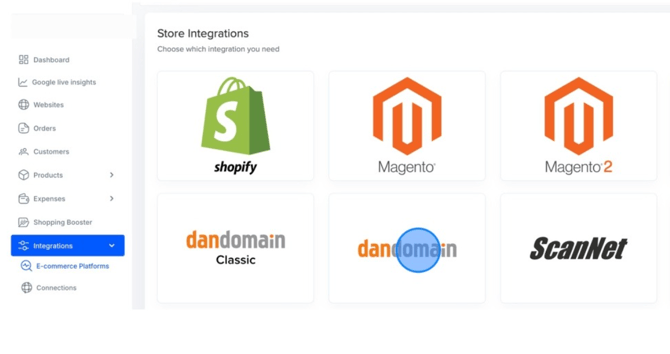
1\. Log in to your **ProfitMetrics account,** navigate **to Integrations** and select "**Dandomain"**
****
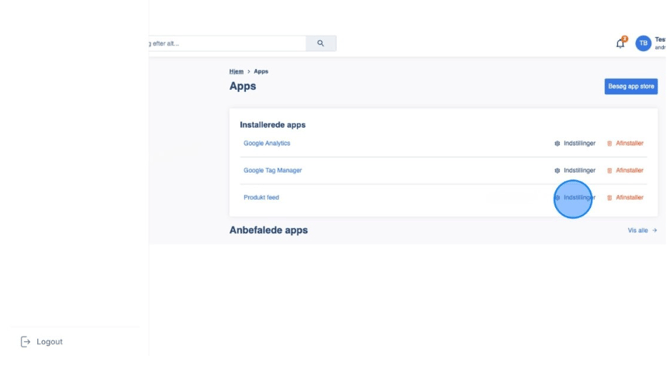
2\. Please ensure a product feed is already set up in Dandomain and have the app **"Produkt feed".** To verify this, go to **Apps in Dandomain.** In the overview, you will see the option to **"Indstillinger".** If **"Produkt feed"** is not there, please go to theapp store to install it
When you have found the **"Produkt feed"** app, click **"Indstillinger"**
****
3\. Next, click **"Opret egen prisportal"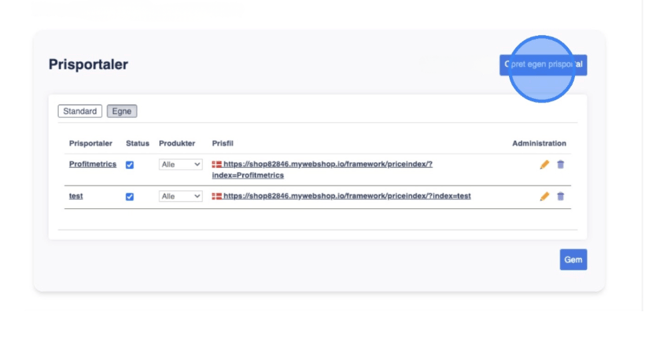**
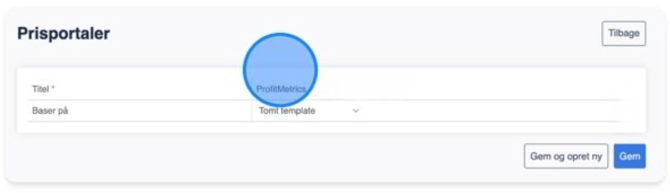
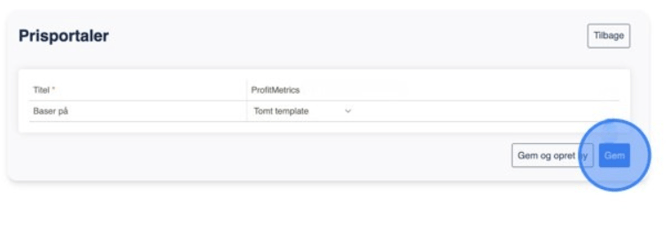
4\. Write a title for the feed and click **"Gem"**. The title does not have to be ProfitMetrics - it can be anything you would like.
Please note that we strongly recommend adding a set of randomly generated characters to the URL to ensure it cannot be easily guessed or accessed by unauthorised users
****
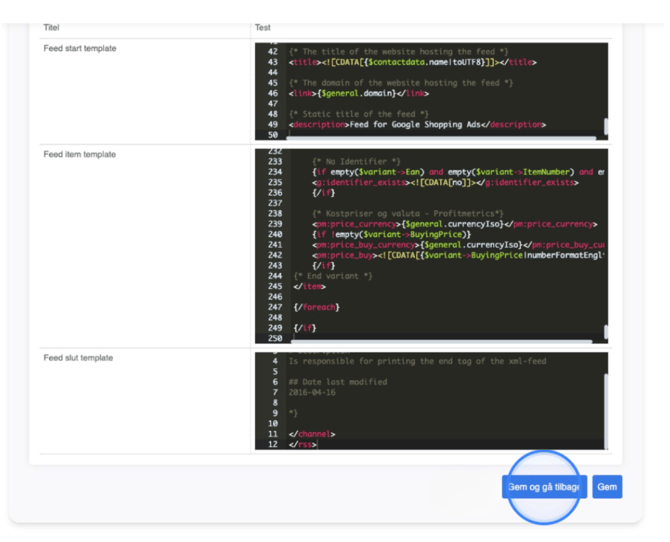
5. Now copy and paste the values below into their corresponding fields on the page.
Click [here](https://my.profitmetrics.io/customer/ssw_feed_setup.php?b=dandomain) to follow the guidelines to setup the **"Feed start template"**, the **"Feed Item template"** and the **"Feed slut template"**
6. When you have filled out the fields in Dandomain, click **"Gem og gå tilbage"**
Please note that the product limit is 25,000 items. If the product feed you wish to import into ProfitMetrics contains more than 25,000 products, you will need to adjust the number in the feed URL accordingly (for example, change it to 75,000 to match the total number of products in your feed).
****
7\. Now copy the URL of the feed you made
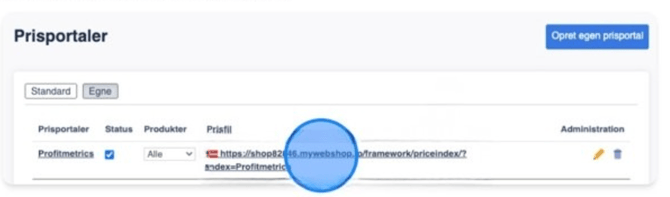8. After copying the url, go to the ProfitMetrics product feed setup page by clicking the link below (opens in new tab)
[Click here to open the Product Feed page](https://my.profitmetrics.io/customer/products_feed.php)
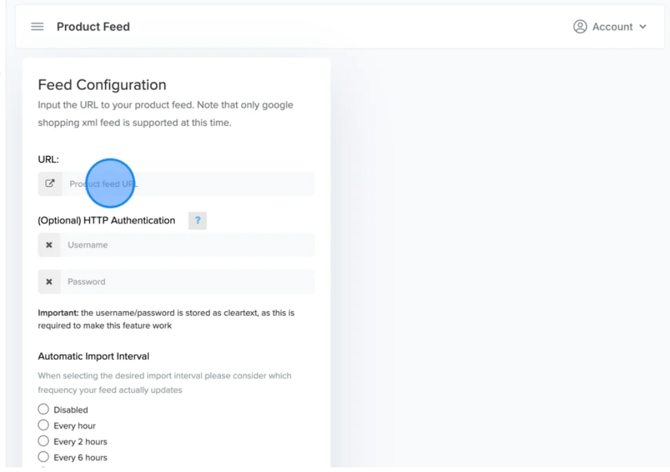
9\. Paste the feed URL into the URL field. Click **"Save feed configuration".** Finally, click **"Import Feed Now"**
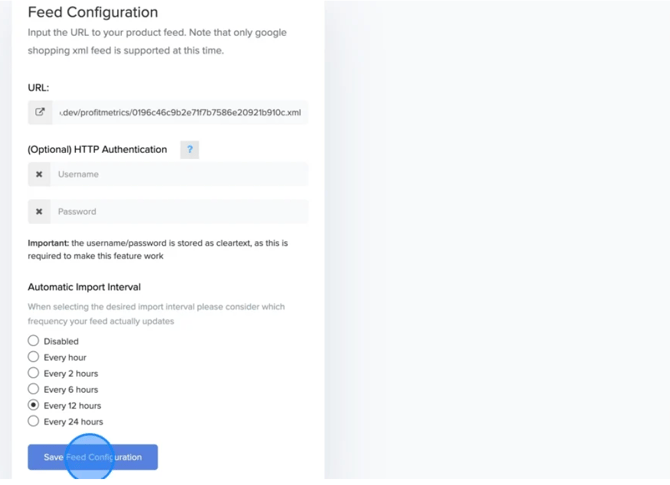
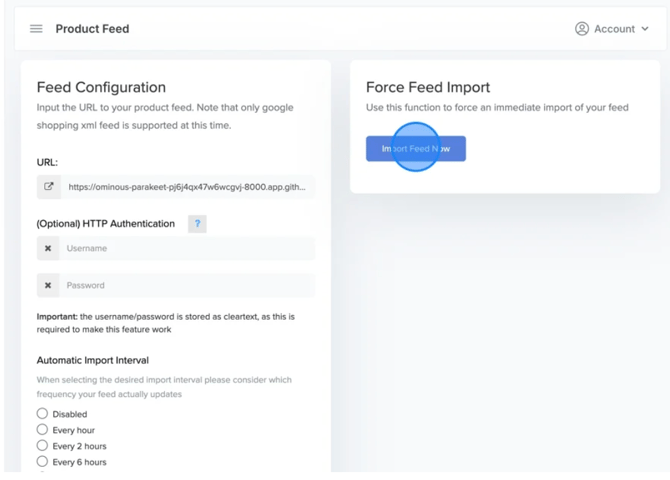
Done. Products will now be imported to ProfitMetrics ✅
- [Getting Started](https://knowledge.profitmetrics.io/getting-started?hsLang=en#main-content)
- [Learn the Basics](https://knowledge.profitmetrics.io/getting-started?hsLang=en#learn-the-basics)
- [Prepare for Onboarding](https://knowledge.profitmetrics.io/getting-started?hsLang=en#prepare-for-onboarding)
- [Account Setup](https://knowledge.profitmetrics.io/getting-started?hsLang=en#account-setup)
- [E-commerce Platforms](https://knowledge.profitmetrics.io/e-commerce-platforms?hsLang=en#main-content)
- [Shopify](https://knowledge.profitmetrics.io/e-commerce-platforms?hsLang=en#shopify)
- [WooCommerce](https://knowledge.profitmetrics.io/e-commerce-platforms?hsLang=en#woocommerce)
- [Magento](https://knowledge.profitmetrics.io/e-commerce-platforms?hsLang=en#magento)
- [PrestaShop](https://knowledge.profitmetrics.io/e-commerce-platforms?hsLang=en#prestashop)
- [BigCommerce](https://knowledge.profitmetrics.io/e-commerce-platforms?hsLang=en#bigcommerce)
- [Shopware](https://knowledge.profitmetrics.io/e-commerce-platforms?hsLang=en#shopware)
- [DanDomain & Related](https://knowledge.profitmetrics.io/e-commerce-platforms?hsLang=en#dandomain-related)
- [Universal Integration (Clientside)](https://knowledge.profitmetrics.io/e-commerce-platforms?hsLang=en#universal-integration-clientside)
- [Universal Integration (Server-side Hybrid)](https://knowledge.profitmetrics.io/e-commerce-platforms?hsLang=en#universal-integration-server-side-hybrid)
- [Other Platforms](https://knowledge.profitmetrics.io/e-commerce-platforms?hsLang=en#other-platforms)
- [Developer Documentation](https://knowledge.profitmetrics.io/e-commerce-platforms?hsLang=en#developer-documentation)
- [Ad Channels](https://knowledge.profitmetrics.io/ad-channels?hsLang=en#main-content)
- [Google Ads](https://knowledge.profitmetrics.io/ad-channels?hsLang=en#google-ads)
- [Meta (Facebook/Instagram)](https://knowledge.profitmetrics.io/ad-channels?hsLang=en#meta-facebook-instagram)
- [Microsoft Bing Ads](https://knowledge.profitmetrics.io/ad-channels?hsLang=en#microsoft-bing-ads)
- [Google Analytics 4](https://knowledge.profitmetrics.io/ad-channels?hsLang=en#google-analytics-4)
- [Partner-ads](https://knowledge.profitmetrics.io/ad-channels?hsLang=en#partner-ads)
- [Other Channel Configuration](https://knowledge.profitmetrics.io/ad-channels?hsLang=en#other-channel-configuration)
- [Tracking & Conversion Setup](https://knowledge.profitmetrics.io/tracking-conversion-setup?hsLang=en#main-content)
- [Overview](https://knowledge.profitmetrics.io/tracking-conversion-setup?hsLang=en#overview)
- [Conversion Booster for Google Ads](https://knowledge.profitmetrics.io/tracking-conversion-setup?hsLang=en#conversion-booster-for-google-ads)
- [Conversion Booster for Meta](https://knowledge.profitmetrics.io/tracking-conversion-setup?hsLang=en#conversion-booster-for-meta)
- [Conversion Booster Custom Pixels](https://knowledge.profitmetrics.io/tracking-conversion-setup?hsLang=en#conversion-booster-custom-pixels)
- [Enhanced Conversions](https://knowledge.profitmetrics.io/tracking-conversion-setup?hsLang=en#enhanced-conversions)
- [Shopping Booster](https://knowledge.profitmetrics.io/shopping-booster?hsLang=en#main-content)
- [Overview & Setup](https://knowledge.profitmetrics.io/shopping-booster?hsLang=en#overview-setup)
- [Supplemental Feeds](https://knowledge.profitmetrics.io/shopping-booster?hsLang=en#supplemental-feeds)
- [Campaigns & Labels](https://knowledge.profitmetrics.io/shopping-booster?hsLang=en#campaigns-labels)
- [Troubleshooting](https://knowledge.profitmetrics.io/shopping-booster?hsLang=en#troubleshooting)
- [Product Feed & Costs](https://knowledge.profitmetrics.io/product-feed-costs?hsLang=en#main-content)
- [Product Feed](https://knowledge.profitmetrics.io/product-feed-costs?hsLang=en#product-feed)
- [Shipping & Payment Costs](https://knowledge.profitmetrics.io/product-feed-costs?hsLang=en#shipping-payment-costs)
- [Expenses](https://knowledge.profitmetrics.io/product-feed-costs?hsLang=en#expenses)
- [Dashboard, Orders & Reporting](https://knowledge.profitmetrics.io/dashboard-orders-reporting?hsLang=en#main-content)
- [Dashboard & Orders](https://knowledge.profitmetrics.io/dashboard-orders-reporting?hsLang=en#dashboard-orders)
- [Looker Studio](https://knowledge.profitmetrics.io/dashboard-orders-reporting?hsLang=en#looker-studio)
- [Google BigQuery](https://knowledge.profitmetrics.io/dashboard-orders-reporting?hsLang=en#google-bigquery)
- [Account & Billing](https://knowledge.profitmetrics.io/account-billing?hsLang=en#main-content)
- [Users & Access](https://knowledge.profitmetrics.io/account-billing?hsLang=en#users-access)
- [Billing & Invoices](https://knowledge.profitmetrics.io/account-billing?hsLang=en#billing-invoices)
- [Privacy & Consent](https://knowledge.profitmetrics.io/privacy-consent?hsLang=en#main-content)
- [GDPR](https://knowledge.profitmetrics.io/privacy-consent?hsLang=en#gdpr)
- [Consent Management Platforms](https://knowledge.profitmetrics.io/privacy-consent?hsLang=en#consent-management-platforms)
- [Google Consent Mode](https://knowledge.profitmetrics.io/privacy-consent?hsLang=en#google-consent-mode)
- [For Agencies](https://knowledge.profitmetrics.io/for-agencies?hsLang=en#main-content)
- [Getting Started as an Agency](https://knowledge.profitmetrics.io/for-agencies?hsLang=en#getting-started-as-an-agency)
- [Agency Certification](https://knowledge.profitmetrics.io/for-agencies?hsLang=en#agency-certification)
- [Shopify](https://knowledge.profitmetrics.io/shopify?hsLang=en)
- [PrestaShop](https://knowledge.profitmetrics.io/prestashop?hsLang=en)
- [Google Ads](https://knowledge.profitmetrics.io/google-ads?hsLang=en#main-content)
- [troubleshoot](https://knowledge.profitmetrics.io/google-ads?hsLang=en#troubleshoot)
- [Meta (Facebook / Instagram)](https://knowledge.profitmetrics.io/meta-facebook-instagram?hsLang=en)
- [Uncategorized](https://knowledge.profitmetrics.io/uncategorized?hsLang=en)
- [Billing](https://knowledge.profitmetrics.io/billing?hsLang=en)
- [Google Sheets](https://knowledge.profitmetrics.io/google-sheets?hsLang=en)
- [Account](https://knowledge.profitmetrics.io/account?hsLang=en)
- [Ideal Shop](https://knowledge.profitmetrics.io/ideal-shop?hsLang=en)
[](https://profitmetrics.io)
[mailto:support@profitmetrics.io](mailto:support@profitmetrics.io)
Copyright © 2026, ProfitMetrics ApS