---
title: How to enable marketing channels for Meta Ads
description: Once you have connected your Meta Ads account to ProfitMetrics, you can select which Meta events represent revenue, profit, and CPA. This lets you see all performance metrics directly in the ProfitMetrics dashboard.
---
[Skip to content](https://knowledge.profitmetrics.io/how-to-enable-marketing-channels-for-meta-ads#main-content)
[](https://knowledge.profitmetrics.io/?hsLang=en)
Open main navigation
Close main navigation
- [Contact Support](https://knowledge.profitmetrics.io/kb-ticket/new)
[Contact Support](https://knowledge.profitmetrics.io/kb-ticket/new?hsLang=en)
How can we help you?
- There are no suggestions because the search field is empty.
1. [Knowledge base](https://knowledge.profitmetrics.io/?hsLang=en)
2. [Ad Channels](https://knowledge.profitmetrics.io/ad-channels?hsLang=en)
3. [Meta (Facebook/Instagram)](https://knowledge.profitmetrics.io/ad-channels?hsLang=en#meta-facebook-instagram)
# How to enable marketing channels for Meta Ads
## Once you have connected your Meta Ads account to ProfitMetrics, you can select which Meta events represent revenue, profit, and CPA. This lets you see all performance metrics directly in the ProfitMetrics dashboard.
---
[Part 1: Verify your setup](https://knowledge.profitmetrics.io/how-to-enable-marketing-channels-for-meta-ads#part1)
[Part 2: Configure conversions for Meta Ads](https://knowledge.profitmetrics.io/how-to-enable-marketing-channels-for-meta-ads#part2)
[Part 3: Can't see Marketing Channels in your Dashboard?](https://knowledge.profitmetrics.io/how-to-enable-marketing-channels-for-meta-ads#part3)
---
**NOTE:**
This is an optional, reporting-only feature that allows you to view data from your Meta Ads account directly within ProfitMetrics.
Before setting this up, make sure to complete your [Meta Ads integration](https://knowledge.profitmetrics.io/how-to-connect-with-meta-and-conversion-booster-for-meta?hsLang=en). The relevant events will only become available for selection in Marketing Channels once the integration has been completed.
The data shown in this dashboard is **reported directly by Meta** and is not de-duplicated across channels. This means that the same conversion may be counted on multiple platforms if a user interacts with ads on each.
### Part 1: Verify your setup
To configure the Meta marketing channel, you should first verify which events are being used.
1. Inside ProfitMetrics, navigate to Integrations \> Connections \> Conversion Booster for Meta \> Meta events:
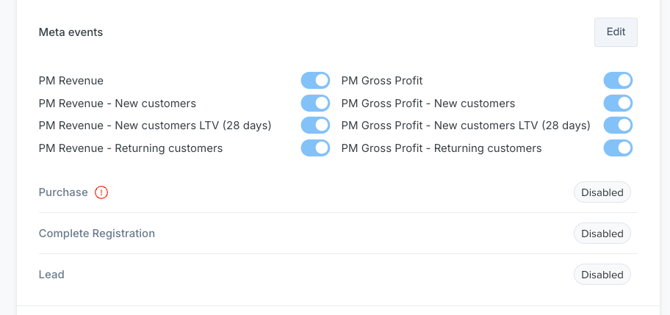
2. In the example above, standard events (Purchase, Complete Registration, Lead) are disabled, while the custom events are enabled, but your setup might be different.
### Part 2: Configure conversions for Meta Ads
Now that you know which events are being used, it's time to configure them in the Marketing Channels.
1. In your **Dashboard**, scroll down to the Marketing Channels section. Select the **Meta Ads** tab and click **Configure conversions**.
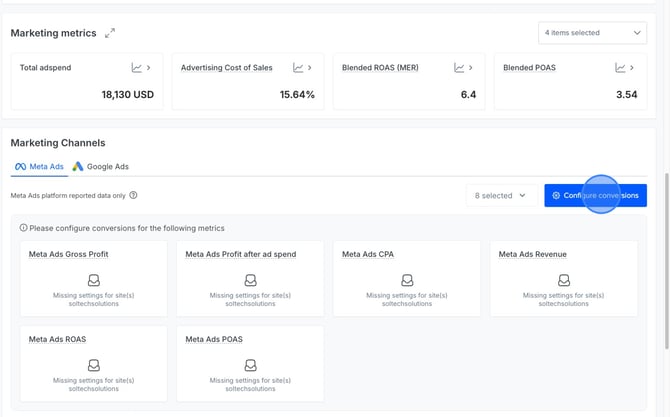
2. Click the **pencil icon** to edit conversions.
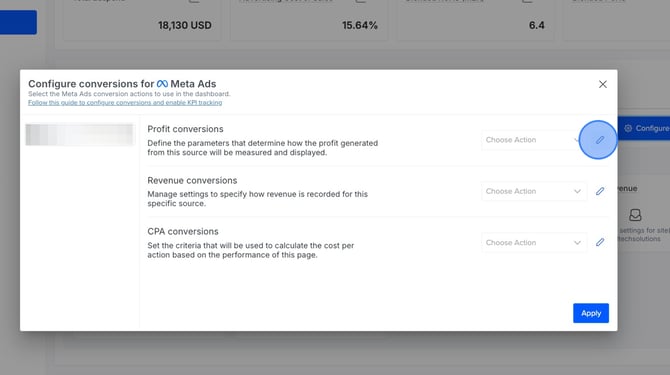
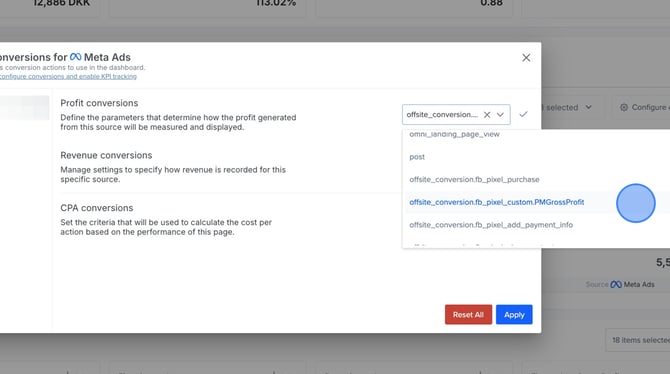
1. For **Profit conversions**, choose the event in Meta where ProfitMetrics sends gross profit data. This will typically be the custom '**PM Gross Profit**' (*offsite\_conversion.fb\_pixel\_custom.PMGrossProfit*) event.
*In legacy setups, it might be one of the standard events: 'Complete Registration', 'Lead', or 'Purchase'.*
Search for and choose the correct event from the list:
2. For **Revenue conversions**, choose the event in Meta that contains the revenue value. This will typically be the custom '**PM Revenue**' (*offsite\_conversion.fb\_pixel\_custom.PMRevenue)* event, depending on your setup.
*In legacy setups, this might be the standard 'Purchase' event.*
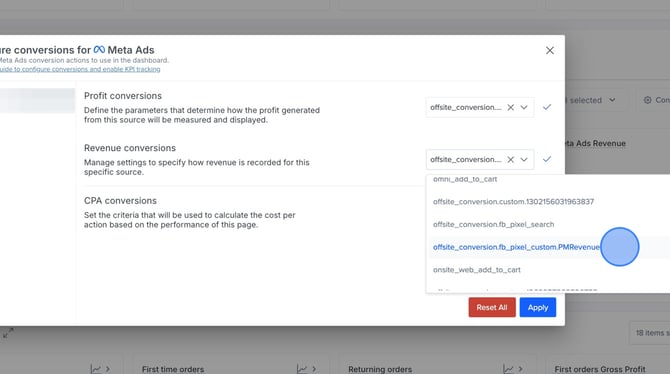
3. For **CPA conversions**, choose the event you are currently using to optimise your ads. Depending on your setup, this could be the standard '**Purchase**' event, or a custom event.
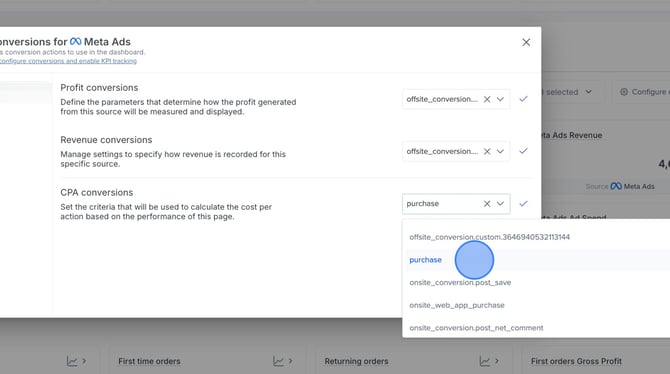
This determines how the Cost per Acquisition (CPA) is calculated in the dashboard — for example, if you optimise for the purchase event, the CPA shown will reflect the cost per purchase.
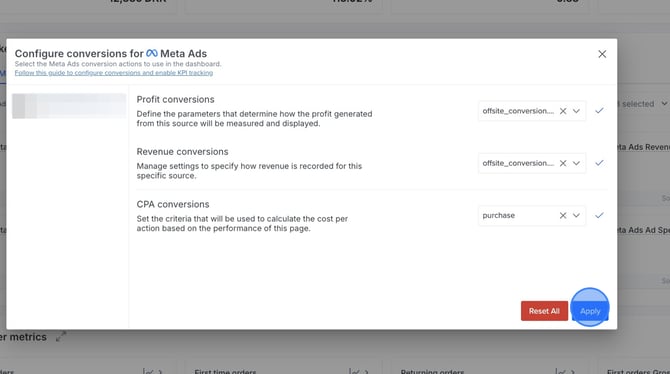
3. Click **Apply**.
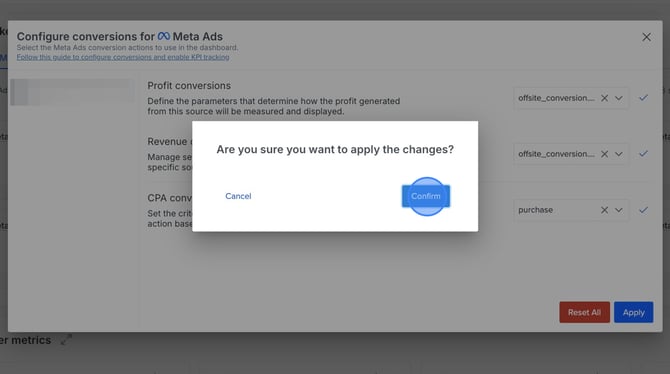
4. Click **Confirm**.
Looking to configure **Marketing Channels for Google Ads**? Click [here](https://knowledge.profitmetrics.io/configuring-conversions-for-google-ads-in-dashboard-for-marketing-channels?hsLang=en).
### Part 3: Can't see Marketing Channels in your Dashboard?
If you can't see the Marketing Channels section in your Dashboard, follow these steps.
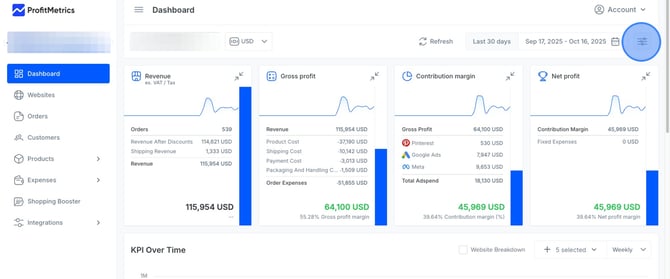
1. In your **Dashboard**, click the **configure icon** in the top right corner.
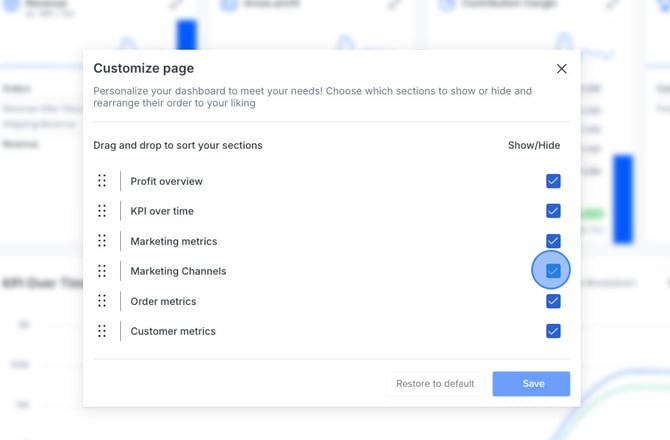
2. Check the box for **Marketing Channels** and click **Save**.
- [Getting Started](https://knowledge.profitmetrics.io/getting-started?hsLang=en#main-content)
- [Learn the Basics](https://knowledge.profitmetrics.io/getting-started?hsLang=en#learn-the-basics)
- [Prepare for Onboarding](https://knowledge.profitmetrics.io/getting-started?hsLang=en#prepare-for-onboarding)
- [Account Setup](https://knowledge.profitmetrics.io/getting-started?hsLang=en#account-setup)
- [E-commerce Platforms](https://knowledge.profitmetrics.io/e-commerce-platforms?hsLang=en#main-content)
- [Shopify](https://knowledge.profitmetrics.io/e-commerce-platforms?hsLang=en#shopify)
- [WooCommerce](https://knowledge.profitmetrics.io/e-commerce-platforms?hsLang=en#woocommerce)
- [Magento](https://knowledge.profitmetrics.io/e-commerce-platforms?hsLang=en#magento)
- [PrestaShop](https://knowledge.profitmetrics.io/e-commerce-platforms?hsLang=en#prestashop)
- [BigCommerce](https://knowledge.profitmetrics.io/e-commerce-platforms?hsLang=en#bigcommerce)
- [Shopware](https://knowledge.profitmetrics.io/e-commerce-platforms?hsLang=en#shopware)
- [DanDomain & Related](https://knowledge.profitmetrics.io/e-commerce-platforms?hsLang=en#dandomain-related)
- [Universal Integration (Clientside)](https://knowledge.profitmetrics.io/e-commerce-platforms?hsLang=en#universal-integration-clientside)
- [Universal Integration (Server-side Hybrid)](https://knowledge.profitmetrics.io/e-commerce-platforms?hsLang=en#universal-integration-server-side-hybrid)
- [Other Platforms](https://knowledge.profitmetrics.io/e-commerce-platforms?hsLang=en#other-platforms)
- [Developer Documentation](https://knowledge.profitmetrics.io/e-commerce-platforms?hsLang=en#developer-documentation)
- [Ad Channels](https://knowledge.profitmetrics.io/ad-channels?hsLang=en#main-content)
- [Google Ads](https://knowledge.profitmetrics.io/ad-channels?hsLang=en#google-ads)
- [Meta (Facebook/Instagram)](https://knowledge.profitmetrics.io/ad-channels?hsLang=en#meta-facebook-instagram)
- [Microsoft Bing Ads](https://knowledge.profitmetrics.io/ad-channels?hsLang=en#microsoft-bing-ads)
- [Google Analytics 4](https://knowledge.profitmetrics.io/ad-channels?hsLang=en#google-analytics-4)
- [Partner-ads](https://knowledge.profitmetrics.io/ad-channels?hsLang=en#partner-ads)
- [Other Channel Configuration](https://knowledge.profitmetrics.io/ad-channels?hsLang=en#other-channel-configuration)
- [Tracking & Conversion Setup](https://knowledge.profitmetrics.io/tracking-conversion-setup?hsLang=en#main-content)
- [Overview](https://knowledge.profitmetrics.io/tracking-conversion-setup?hsLang=en#overview)
- [Conversion Booster for Google Ads](https://knowledge.profitmetrics.io/tracking-conversion-setup?hsLang=en#conversion-booster-for-google-ads)
- [Conversion Booster for Meta](https://knowledge.profitmetrics.io/tracking-conversion-setup?hsLang=en#conversion-booster-for-meta)
- [Conversion Booster Custom Pixels](https://knowledge.profitmetrics.io/tracking-conversion-setup?hsLang=en#conversion-booster-custom-pixels)
- [Enhanced Conversions](https://knowledge.profitmetrics.io/tracking-conversion-setup?hsLang=en#enhanced-conversions)
- [Shopping Booster](https://knowledge.profitmetrics.io/shopping-booster?hsLang=en#main-content)
- [Overview & Setup](https://knowledge.profitmetrics.io/shopping-booster?hsLang=en#overview-setup)
- [Supplemental Feeds](https://knowledge.profitmetrics.io/shopping-booster?hsLang=en#supplemental-feeds)
- [Campaigns & Labels](https://knowledge.profitmetrics.io/shopping-booster?hsLang=en#campaigns-labels)
- [Troubleshooting](https://knowledge.profitmetrics.io/shopping-booster?hsLang=en#troubleshooting)
- [Product Feed & Costs](https://knowledge.profitmetrics.io/product-feed-costs?hsLang=en#main-content)
- [Product Feed](https://knowledge.profitmetrics.io/product-feed-costs?hsLang=en#product-feed)
- [Shipping & Payment Costs](https://knowledge.profitmetrics.io/product-feed-costs?hsLang=en#shipping-payment-costs)
- [Expenses](https://knowledge.profitmetrics.io/product-feed-costs?hsLang=en#expenses)
- [Dashboard, Orders & Reporting](https://knowledge.profitmetrics.io/dashboard-orders-reporting?hsLang=en#main-content)
- [Dashboard & Orders](https://knowledge.profitmetrics.io/dashboard-orders-reporting?hsLang=en#dashboard-orders)
- [Looker Studio](https://knowledge.profitmetrics.io/dashboard-orders-reporting?hsLang=en#looker-studio)
- [Google BigQuery](https://knowledge.profitmetrics.io/dashboard-orders-reporting?hsLang=en#google-bigquery)
- [Account & Billing](https://knowledge.profitmetrics.io/account-billing?hsLang=en#main-content)
- [Users & Access](https://knowledge.profitmetrics.io/account-billing?hsLang=en#users-access)
- [Billing & Invoices](https://knowledge.profitmetrics.io/account-billing?hsLang=en#billing-invoices)
- [Privacy & Consent](https://knowledge.profitmetrics.io/privacy-consent?hsLang=en#main-content)
- [GDPR](https://knowledge.profitmetrics.io/privacy-consent?hsLang=en#gdpr)
- [Consent Management Platforms](https://knowledge.profitmetrics.io/privacy-consent?hsLang=en#consent-management-platforms)
- [Google Consent Mode](https://knowledge.profitmetrics.io/privacy-consent?hsLang=en#google-consent-mode)
- [For Agencies](https://knowledge.profitmetrics.io/for-agencies?hsLang=en#main-content)
- [Getting Started as an Agency](https://knowledge.profitmetrics.io/for-agencies?hsLang=en#getting-started-as-an-agency)
- [Agency Certification](https://knowledge.profitmetrics.io/for-agencies?hsLang=en#agency-certification)
- [Shopify](https://knowledge.profitmetrics.io/shopify?hsLang=en)
- [PrestaShop](https://knowledge.profitmetrics.io/prestashop?hsLang=en)
- [Google Ads](https://knowledge.profitmetrics.io/google-ads?hsLang=en#main-content)
- [troubleshoot](https://knowledge.profitmetrics.io/google-ads?hsLang=en#troubleshoot)
- [Meta (Facebook / Instagram)](https://knowledge.profitmetrics.io/meta-facebook-instagram?hsLang=en)
- [Shopping Booster for Google Ads](https://knowledge.profitmetrics.io/shopping-booster-for-google-ads?hsLang=en)
- [Uncategorized](https://knowledge.profitmetrics.io/uncategorized?hsLang=en)
- [Billing](https://knowledge.profitmetrics.io/billing?hsLang=en)
- [Google Sheets](https://knowledge.profitmetrics.io/google-sheets?hsLang=en)
- [Account](https://knowledge.profitmetrics.io/account?hsLang=en)
- [Ideal Shop](https://knowledge.profitmetrics.io/ideal-shop?hsLang=en)
- [Returns](https://knowledge.profitmetrics.io/returns?hsLang=en)
[](https://profitmetrics.io)
[mailto:support@profitmetrics.io](mailto:support@profitmetrics.io)
Copyright © 2026, ProfitMetrics ApS