---
title: How to create custom columns for ProfitMetrics events in Meta Ads Manager
description: how-to-create-custom-columns-for-profitmetrics-events-in-meta-ads-manager
---
[Skip to content](https://knowledge.profitmetrics.io/how-to-create-custom-columns-for-profitmetrics-events-in-meta-ads-manager#main-content)
[](https://knowledge.profitmetrics.io/?hsLang=en)
Open main navigation
Close main navigation
- [Contact Support](https://knowledge.profitmetrics.io/kb-ticket/new)
[Contact Support](https://knowledge.profitmetrics.io/kb-ticket/new?hsLang=en)
How can we help you?
- There are no suggestions because the search field is empty.
1. [Knowledge base](https://knowledge.profitmetrics.io/?hsLang=en)
2. [Ad Channels](https://knowledge.profitmetrics.io/ad-channels?hsLang=en)
3. [Meta (Facebook/Instagram)](https://knowledge.profitmetrics.io/ad-channels?hsLang=en#meta-facebook-instagram)
# How to create custom columns for ProfitMetrics events in Meta Ads Manager
## Follow the steps below to create custom columns for ProfitMetrics events in Meta
#### [Part 1: Create the standard ProfitMetrics columns](https://knowledge.profitmetrics.io/how-to-create-custom-columns-for-profitmetrics-events-in-meta-ads-manager#part1) [Part 2: Create the new customer columns (Optional)](https://knowledge.profitmetrics.io/how-to-create-custom-columns-for-profitmetrics-events-in-meta-ads-manager#part2) [Part 3: Create the returning customer columns (Optional)](https://knowledge.profitmetrics.io/how-to-create-custom-columns-for-profitmetrics-events-in-meta-ads-manager#part3) [Part 4: Create the new customer LTV 28 days columns (Optional)](https://knowledge.profitmetrics.io/how-to-create-custom-columns-for-profitmetrics-events-in-meta-ads-manager#part4) [Part 5: Save the custom columns as a preset](https://knowledge.profitmetrics.io/how-to-create-custom-columns-for-profitmetrics-events-in-meta-ads-manager#part5) [Part 6: Summary of custom columns](https://knowledge.profitmetrics.io/how-to-create-custom-columns-for-profitmetrics-events-in-meta-ads-manager#part6) [Part 7: Important notes](https://knowledge.profitmetrics.io/how-to-create-custom-columns-for-profitmetrics-events-in-meta-ads-manager#part7)[Part 8: If the event does not appear when creating a custom metric](https://knowledge.profitmetrics.io/how-to-create-custom-columns-for-profitmetrics-events-in-meta-ads-manager#part8)
---
#### **ProfitMetrics events available in Meta**
The following ProfitMetrics events may be available in Meta Events Manager:
- PMRevenue
- PMGrossProfit
- PMRevenueNewCustomersLTV28Days
- PMGrossProfitNewCustomersLTV28Days
- PMRevenueNewCustomers
- PMGrossProfitNewCustomers
- PMRevenueReturningCustomers
- PMGrossProfitReturningCustomers
You may also see a test event, such as:
- PM\_test\_event
Please note that test events should normally not be used for the final custom column setup.
#### **Before you start**
Before creating the custom columns, please make sure that:
- ProfitMetrics is connected to Meta
- The correct Meta Dataset / Pixel ID is connected in ProfitMetrics
- The ProfitMetrics events are active in Meta Events Manager
- The events have received data in Meta
- You have access to create custom metrics in Meta Ads Manager
Please note that new events may not appear immediately in Meta Ads Manager. In some cases, the event needs to receive data first before it becomes available when creating custom metrics.
### **Part 1: Create the standard ProfitMetrics columns**
1. Go to https://adsmanager.facebook.com/
2. Select the correct ad account
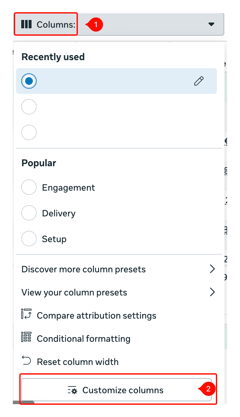
3. Click the **Columns** dropdown
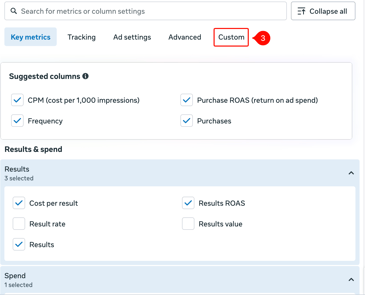
4. Click **Customize columns**
5. Click **Create custom metric
**
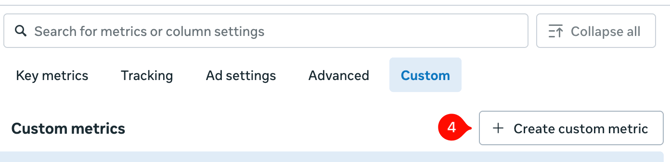
You will now create the ProfitMetrics custom columns one by one.
**The overall columns use these two events:**
- PMRevenue
- PMGrossProfit
These columns show the total ProfitMetrics revenue, gross profit, ROAS, and POAS.
---
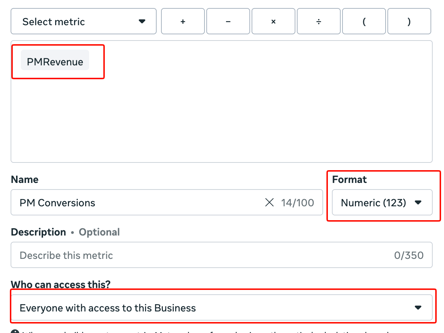
### 1: PM Conversions
1. Click **Create custom metric**.
2. Type `PM Conversions` in the **Name** field.
3. Open the **Select metric** dropdown and choose **PMRevenue**.
4. Leave the **Format** dropdown set to **Numeric**.
5. Open the **Who can access this?** dropdown and choose **Everyone with access to this Business**.
6. Click **Create and add another**.
****
---
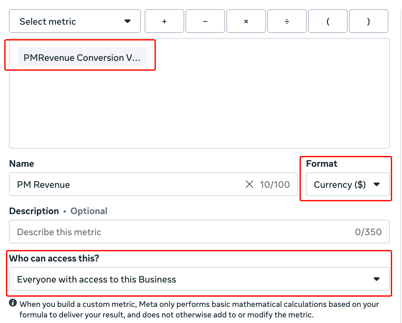
### 2: PM Revenue
1. Click **Create custom metric**.
2. Type `PM Revenue` in the **Name** field.
3. Open the **Select metric** dropdown and choose **PMRevenue conversion value**.
4. Open the **Format** dropdown and choose **Currency**.
5. Open the **Who can access this?** dropdown and choose **Everyone with access to this Business**.
6. Click **Create and add another**.
****
---
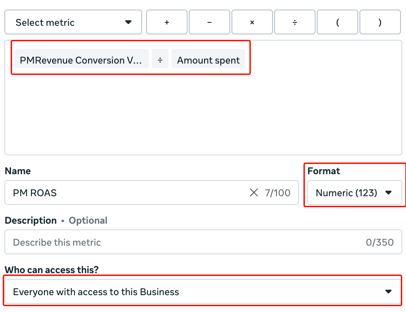
### **3: PM ROAS**
1. Click **Create custom metric**.
2. Type `PM ROAS` in the **Name** field.
3. Open the **Select metric** dropdown and choose **PMRevenue conversion value**.
4. Click the **Divide (÷)** operator.
5. Open the next **Select metric** dropdown and choose **Amount spent**.
6. Leave the **Format** dropdown set to **Numeric**.
7. Open the **Who can access this?** dropdown and choose **Everyone with access to this Business**.
8. Click **Create and add another**.
---
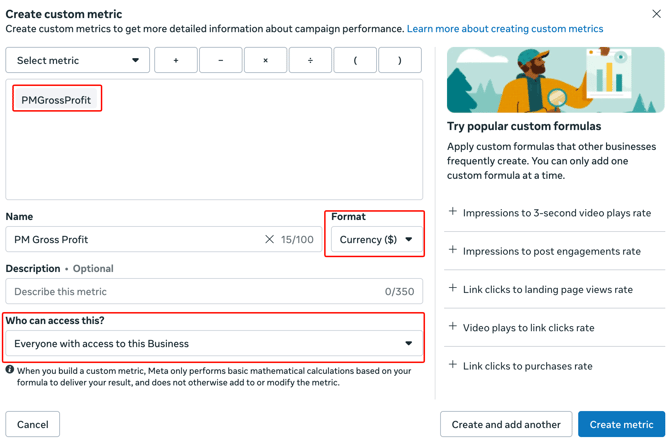
### 4: PM Gross Profit
1. Click **Create custom metric**.
2. Type `PM Gross Profit` in the **Name** field.
3. Open the **Select metric** dropdown and choose **PMGrossProfit conversion value**.
4. Open the **Format** dropdown and choose **Currency**.
5. Open the **Who can access this?** dropdown and choose **Everyone with access to this Business**.
6. Click **Create and add another**.
---
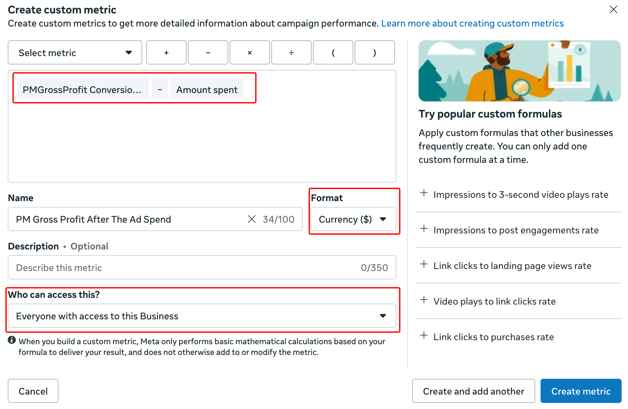
### 5: PM Gross Profit After Ad Spend
1. Click **Create custom metric**.
2. Type `PM Gross Profit After Ad Spend` in the **Name** field.
3. Open the **Select metric** dropdown and choose **PMGrossProfit conversion value**.
4. Click the **Minus / Subtract (−)** operator.
5. Open the next **Select metric** dropdown and choose **Amount spent**.
6. Open the **Format** dropdown and choose **Currency**.
7. Open the **Who can access this?** dropdown and choose **Everyone with access to this Business**.
8. Click **Create and add another**.
****
---
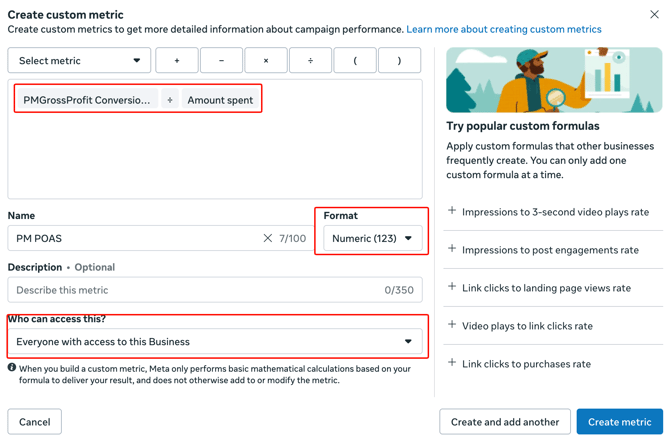
### 6: PM POAS
1. Click **Create custom metric**.
2. Type `PM POAS` in the **Name** field.
3. Open the **Select metric** dropdown and choose **PMGrossProfit conversion value**.
4. Click the **Divide (÷)** operator.
5. Open the next **Select metric** dropdown and choose **Amount spent**.
6. Leave the **Format** dropdown set to **Numeric**.
7. Open the **Who can access this?** dropdown and choose **Everyone with access to this Business**.
8. Click **Create and add another**.
### **Part 2: Create the new customer columns (Optional)**
**The new customer columns use these two events:**
- PMRevenueNewCustomers
- PMGrossProfitNewCustomers
These columns show ProfitMetrics performance for new customers only.
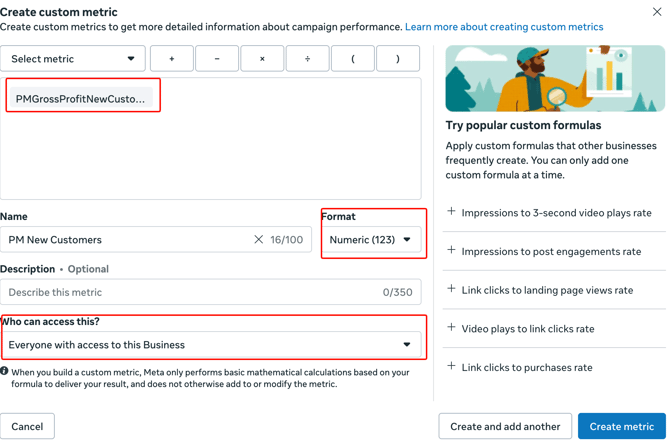
### **Column 7. PM Conversions New Customers**
1. Click **Create custom metric**
2. Under **Name**, type:
**"PM Conversions New Customers"**
1. Click the **Select metric** dropdown
2. Select:
**"PMRevenueNewCustomers"**
1. Leave the **Format** set to:
**"Numeric"**
1. Click the **Who can access this?** dropdown
2. Select:
**"Everyone with access to this Business"**
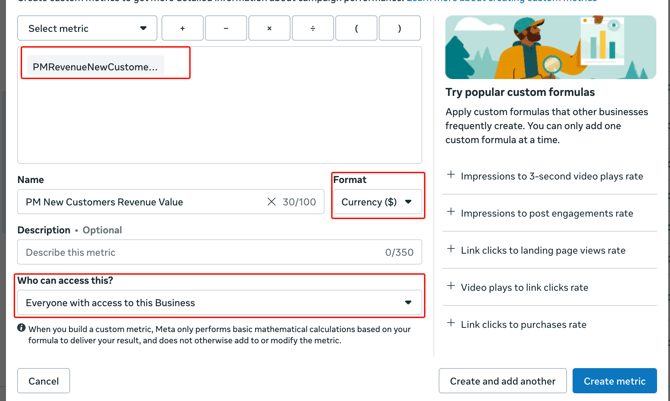
### **Column 8. PM Revenue New Customers Value**
1. Click **Create custom metric**
2. Under **Name**, type:
**"PM Revenue New Customers"**
1. Click the **Select metric** dropdown
2. Select:
**"PMRevenueNewCustomers conversion value"**
1. Click the **Format** dropdown
2. Select:
**"Currency"**
1. Click the **Who can access this?** dropdown
2. Select:
**"Everyone with access to this Business"**
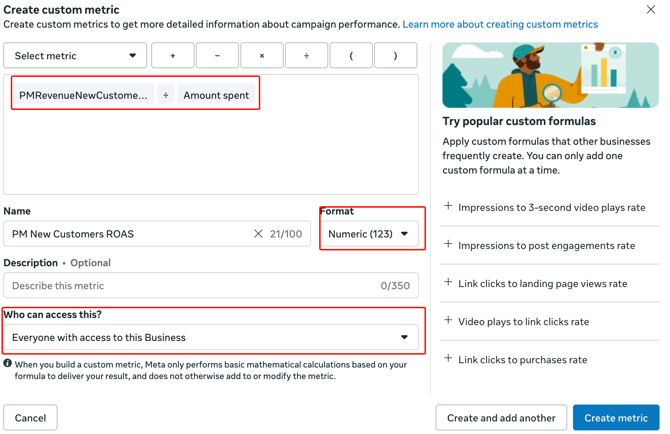
### **Column 9. PM ROAS New Customers**
1. Click **Create custom metric**
2. Under **Name**, type:
**"PM ROAS New Customers"**
1. Click the **Select metric** dropdown
2. Select:
**"PMRevenueNewCustomers conversion value"**
1. Click **Divide**
2. Click the **Select metric** dropdown
3. Select:
**"Amount spent"**
1. Leave the **Format** set to:
**"Numeric"**
1. Click the **Who can access this?** dropdown
2. Select:
**"Everyone with access to this Business"**
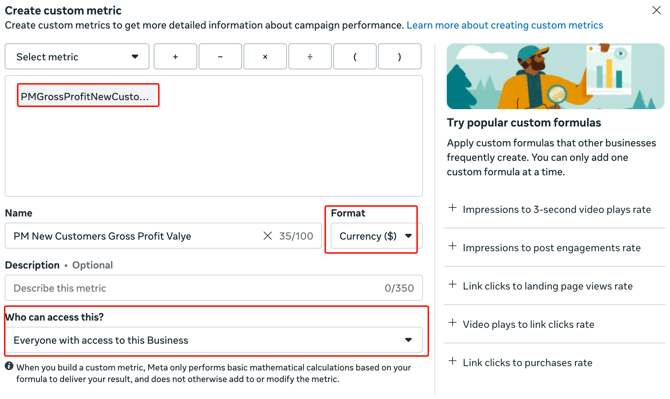
### **Column 10. PM Gross Profit New Customers**
1. Click **Create custom metric**
2. Under **Name**, type:
**"PM Gross Profit New Customers"**
1. Click the **Select metric** dropdown
2. Select:
**"PMGrossProfitNewCustomers conversion value"**
1. Click the **Format** dropdown
2. Select:
**"Currency"**
1. Click the **Who can access this?** dropdown
2. Select:
**"Everyone with access to this Business"**
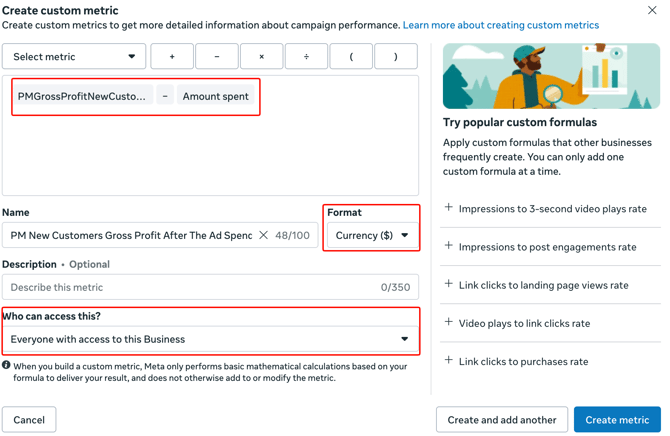
### **Column 11. PM Gross Profit After Ad Spend New Customers**
1. Click **Create custom metric**
2. Under **Name**, type:
**"PM Gross Profit After Ad Spend New Customers"**
1. Click the **Select metric** dropdown
2. Select:
**"PMGrossProfitNewCustomers conversion value"**
1. Click **minus / subtract**
2. Click the **Select metric** dropdown
3. Select:
**"Amount spent"**
1. Click the **Format** dropdown
2. Select:
**"Currency"**
1. Click the **Who can access this?** dropdown
2. Select:
**"Everyone with access to this Business"**
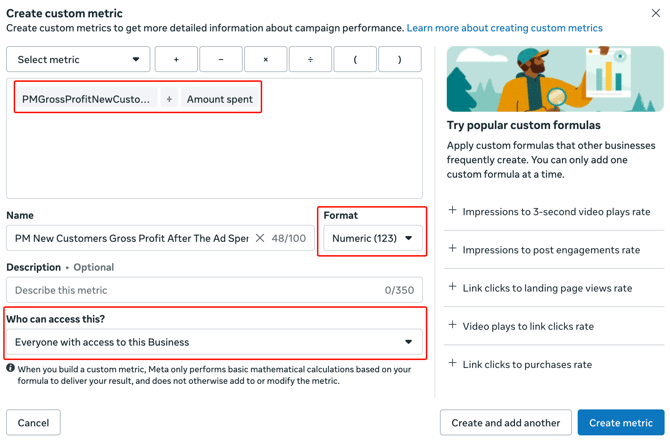
### **Column 12. PM POAS New Customers**
1. Click **Create custom metric**
2. Under **Name**, type:
**"PM POAS New Customers"**
1. Click the **Select metric** dropdown
2. Select:
**"PMGrossProfitNewCustomers conversion value"**
1. Click **Divide**
2. Click the **Select metric** dropdown
3. Select:
**"Amount spent"**
1. Leave the **Format** set to:
**"Numeric"**
1. Click the **Who can access this?** dropdown
2. Select:
### **Part 3: Create the returning customer columns (Optional)**
The returning customer columns use these two events:
- PMRevenueReturningCustomers
- PMGrossProfitReturningCustomers
These columns show ProfitMetrics performance for returning customers only.
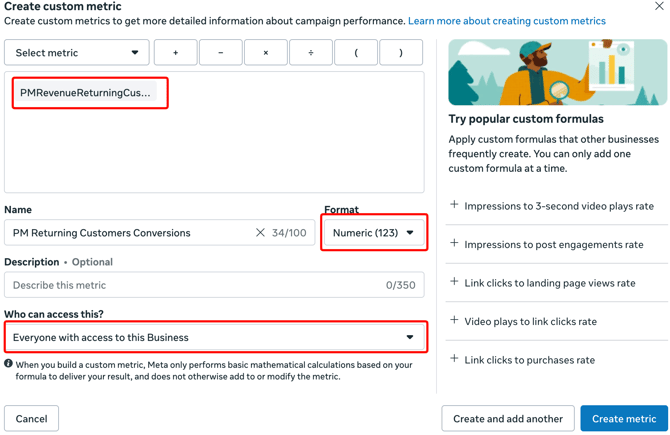
### **Column 13. PM Conversions Returning Customers**
1. Click **Create custom metric**
2. Under **Name**, type:
**"PM Conversions Returning Customers"**
1. Click the **Select metric** dropdown
2. Select:
**"PMRevenueReturningCustomers"**
1. Leave the **Format** set to:
**"Numeric"**
1. Click the **Who can access this?** dropdown
2. Select:
**"Everyone with access to this Business"**
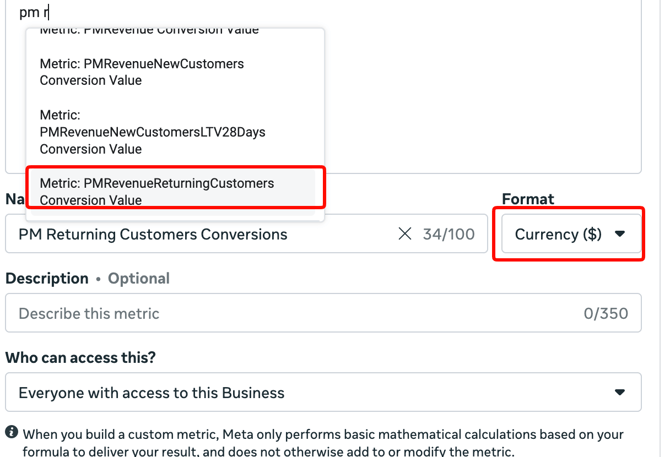
### **Column 14. PM Revenue Returning Customers**
1. Click **Create custom metric**
2. Under **Name**, type:
**"PM Revenue Returning Customers"**
1. Click the **Select metric** dropdown
2. Select:
**"PMRevenueReturningCustomers conversion value"**
1. Click the **Format** dropdown
2. Select:
**"Currency"**
1. Click the **Who can access this?** dropdown
2. Select:
**"Everyone with access to this Business"**
### **Column 15. PM ROAS Returning Customers**
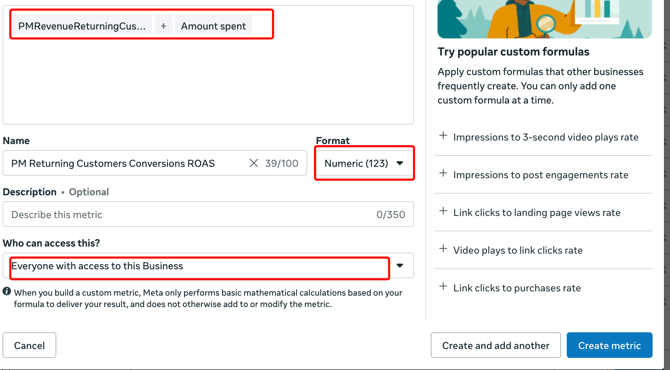
1. Click **Create custom metric**
2. Under **Name**, type:
**"PM ROAS Returning Customers"**
1. Click the **Select metric** dropdown
2. Select:
**"PMRevenueReturningCustomers conversion value"**
1. Click **Divide**
2. Click the **Select metric** dropdown
3. Select:
**"Amount spent"**
1. Leave the **Format** set to:
**"Numeric"**
1. Click the **Who can access this?** dropdown
2. Select:
**"Everyone with access to this Business"**
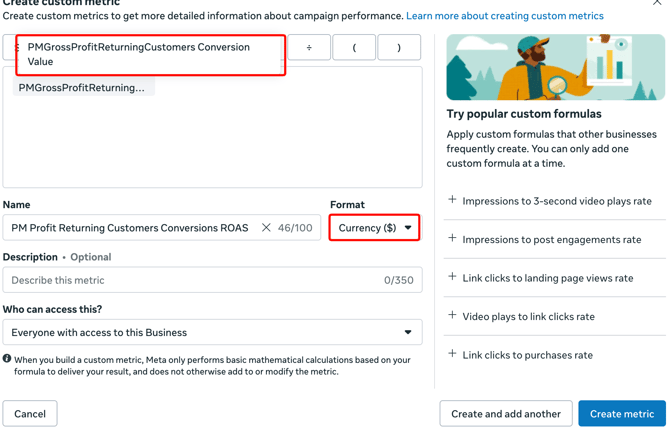
### **Column 16. PM Gross Profit Returning Customers**
1. Click **Create custom metric**
2. Under **Name**, type:
**"PM Gross Profit Returning Customers"**
1. Click the **Select metric** dropdown
2. Select:
**"PMGrossProfitReturningCustomers conversion value"**
1. Click the **Format** dropdown
2. Select:
**"Currency"**
1. Click the **Who can access this?** dropdown
2. Select:
**"Everyone with access to this Business"**
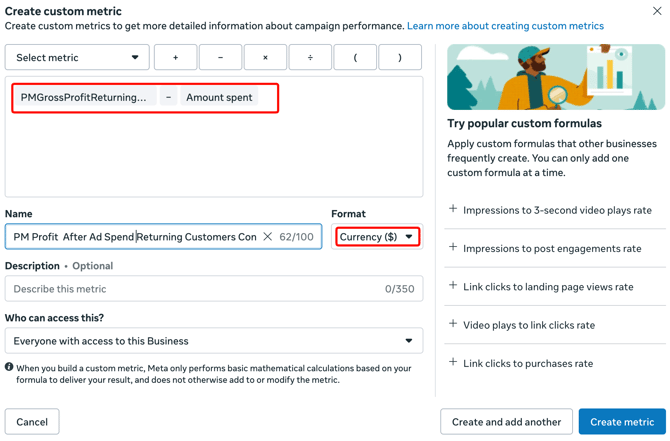
### **Column 17. PM Gross Profit After Ad Spend Returning Customers**
1. Click **Create custom metric**
2. Under **Name**, type:
**"PM Gross Profit After Ad Spend Returning Customers"**
1. Click the **Select metric** dropdown
2. Select:
**"PMGrossProfitReturningCustomers conversion value"**
1. Click **minus / subtract**
2. Click the **Select metric** dropdown
3. Select:
**"Amount spent"**
1. Click the **Format** dropdown
2. Select:
**"Currency"**
1. Click the **Who can access this?** dropdown
2. Select:
**"Everyone with access to this Business"**
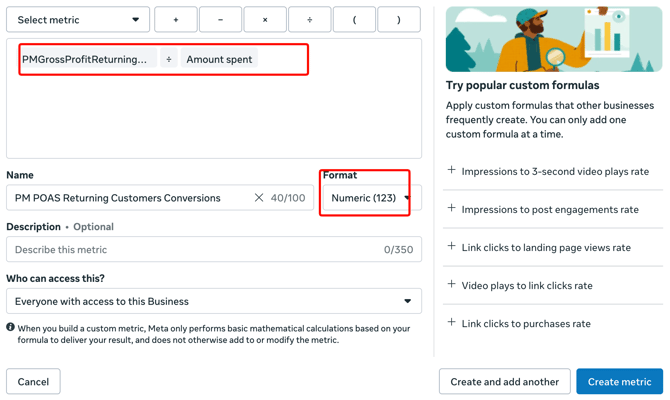
### **Column 18. PM POAS Returning Customers**
1. Click **Create custom metric**
2. Under **Name**, type:
**"PM POAS Returning Customers"**
1. Click the **Select metric** dropdown
2. Select:
**"PMGrossProfitReturningCustomers conversion value"**
1. Click **Divide**
2. Click the **Select metric** dropdown
3. Select:
**"Amount spent"**
1. Leave the **Format** set to:
**"Numeric"**
1. Click the **Who can access this?** dropdown
2. Select:
**"Everyone with access to this Business"**
### **Part 4: Create the new customer LTV 28 days columns (Optional)**
The new customer LTV 28 days columns use these two events:
- PMRevenueNewCustomersLTV28Days
- PMGrossProfitNewCustomersLTV28Days
These columns show the 28-day LTV value from new customers.
### **Column 19. PM Conversions New Customers LTV 28 Days**
1. Click **Create custom metric**
2. Under **Name**, type:
**"PM Conversions New Customers LTV 28 Days"**
1. Click the **Select metric** dropdown
2. Select:
**"PMRevenueNewCustomersLTV28Days"**
1. Leave the **Format** set to:
**"Numeric"**
1. Click the **Who can access this?** dropdown
2. Select:
**"Everyone with access to this Business"**
1. Click **Create metric**
### **Column 20. PM Revenue New Customers LTV 28 Days**
1. Click **Create custom metric**
2. Under **Name**, type:
**"PM Revenue New Customers LTV 28 Days"**
1. Click the **Select metric** dropdown
2. Select:
**"PMRevenueNewCustomersLTV28Days conversion value"**
1. Click the **Format** dropdown
2. Select:
**"Currency"**
1. Click the **Who can access this?** dropdown
2. Select:
**"Everyone with access to this Business"**
1. Click **Create metric**
### **Column 21. PM ROAS New Customers LTV 28 Days**
1. Click **Create custom metric**
2. Under **Name**, type:
**"PM ROAS New Customers LTV 28 Days"**
1. Click the **Select metric** dropdown
2. Select:
**"PMRevenueNewCustomersLTV28Days conversion value"**
1. Click **Divide**
2. Click the **Select metric** dropdown
3. Select:
**"Amount spent"**
1. Leave the **Format** set to:
**"Numeric"**
1. Click the **Who can access this?** dropdown
2. Select:
**"Everyone with access to this Business"**
1. Click **Create metric**
### **Column 22. PM Gross Profit New Customers LTV 28 Days**
1. Click **Create custom metric**
2. Under **Name**, type:
**"PM Gross Profit New Customers LTV 28 Days"**
1. Click the **Select metric** dropdown
2. Select:
**"PMGrossProfitNewCustomersLTV28Days conversion value"**
1. Click the **Format** dropdown
2. Select:
**"Currency"**
1. Click the **Who can access this?** dropdown
2. Select:
**"Everyone with access to this Business"**
1. Click **Create metric**
### **Column 23. PM Gross Profit After Ad Spend New Customers LTV 28 Days**
1. Click **Create custom metric**
2. Under **Name**, type:
**"PM Gross Profit After Ad Spend New Customers LTV 28 Days"**
1. Click the **Select metric** dropdown
2. Select:
**"PMGrossProfitNewCustomersLTV28Days conversion value"**
1. Click **minus / subtract**
2. Click the **Select metric** dropdown
3. Select:
**"Amount spent"**
1. Click the **Format** dropdown
2. Select:
**"Currency"**
1. Click the **Who can access this?** dropdown
2. Select:
**"Everyone with access to this Business"**
1. Click **Create metric**
### **Column 24. PM POAS New Customers LTV 28 Days**
1. Click **Create custom metric**
2. Under **Name**, type:
**"PM POAS New Customers LTV 28 Days"**
1. Click the **Select metric** dropdown
2. Select:
**"PMGrossProfitNewCustomersLTV28Days conversion value"**
1. Click **Divide**
2. Click the **Select metric** dropdown
3. Select:
**"Amount spent"**
1. Leave the **Format** set to:
**"Numeric"**
1. Click the **Who can access this?** dropdown
2. Select:
**"Everyone with access to this Business"**
1. Click **Create metric**
### **Part 5: Save the custom columns as a preset**
1. Click the **Columns** dropdown
2. Click **Customize columns**
3. Search for the ProfitMetrics custom columns you created
4. Select the columns you want to include
5. Check the "**Save as column preset"**
6. Name the preset: **"ProfitMetrics"**
7. Click **Apply**
You can now use this preset whenever you want to review ProfitMetrics performance in Meta Ads Manager.
### **Part 6: Summary of custom columns**
#### **Overall ProfitMetrics columns**
- PM Conversions
- PM Revenue
- PM ROAS
- PM Gross Profit
- PM Gross Profit After Ad Spend
- PM POAS
#### **New customer columns**
- PM Conversions New Customers
- PM Revenue New Customers
- PM ROAS New Customers
- PM Gross Profit New Customers
- PM Gross Profit After Ad Spend New Customers
- PM POAS New Customers
#### **Returning customer columns**
- PM Conversions Returning Customers
- PM Revenue Returning Customers
- PM ROAS Returning Customers
- PM Gross Profit Returning Customers
- PM Gross Profit After Ad Spend Returning Customers
- PM POAS Returning Customers
#### **New customer LTV 28 days columns**
- PM Conversions New Customers LTV 28 Days
- PM Revenue New Customers LTV 28 Days
- PM ROAS New Customers LTV 28 Days
- PM Gross Profit New Customers LTV 28 Days
- PM Gross Profit After Ad Spend New Customers LTV 28 Days
- PM POAS New Customers LTV 28 Days
Total recommended columns:
- 24 custom columns
Please note that **PM\_test\_event** is not included in this setup.
### **Part 7: Important notes**
For conversion columns, use the event itself.
Example:
PMRevenueNewCustomers
For value-based columns, use the event conversion value.
Example:
PMRevenueNewCustomers conversion value
For ROAS columns, use the relevant revenue event conversion value divided by Amount spent.
Example:
PMRevenueNewCustomers conversion value / Amount spent
For POAS columns, use the relevant gross profit event conversion value divided by Amount spent.
Example:
PMGrossProfitNewCustomers conversion value / Amount spent
For gross profit after ad spend columns, use the relevant gross profit event conversion value minus Amount spent.
Example:
PMGrossProfitNewCustomers conversion value - Amount spent
Please do not create “Revenue After Ad Spend” columns for revenue events, as revenue minus ad spend does not show actual profitability.
### **Part 8: If the event does not appear when creating a custom metric**
If you cannot find the ProfitMetrics event when creating a custom metric, please check the following:
- The event is active in ProfitMetrics
- The correct Meta Dataset / Pixel ID is connected
- The event has received data in Meta Events Manager
- You are using the correct ad account
- You have the correct permissions in Meta Business Manager
- Meta has had enough time to process the event
- **You have created the test campaign to activate the events**
Please note that Meta may not show new events immediately. In some cases, the event needs to receive data before it becomes available in the custom metric setup.
And that’s it.
You have now created the ProfitMetrics custom columns in Meta Ads Manager.
- [Getting Started](https://knowledge.profitmetrics.io/getting-started?hsLang=en#main-content)
- [Learn the Basics](https://knowledge.profitmetrics.io/getting-started?hsLang=en#learn-the-basics)
- [Prepare for Onboarding](https://knowledge.profitmetrics.io/getting-started?hsLang=en#prepare-for-onboarding)
- [Account Setup](https://knowledge.profitmetrics.io/getting-started?hsLang=en#account-setup)
- [E-commerce Platforms](https://knowledge.profitmetrics.io/e-commerce-platforms?hsLang=en#main-content)
- [Shopify](https://knowledge.profitmetrics.io/e-commerce-platforms?hsLang=en#shopify)
- [WooCommerce](https://knowledge.profitmetrics.io/e-commerce-platforms?hsLang=en#woocommerce)
- [Magento](https://knowledge.profitmetrics.io/e-commerce-platforms?hsLang=en#magento)
- [PrestaShop](https://knowledge.profitmetrics.io/e-commerce-platforms?hsLang=en#prestashop)
- [BigCommerce](https://knowledge.profitmetrics.io/e-commerce-platforms?hsLang=en#bigcommerce)
- [Shopware](https://knowledge.profitmetrics.io/e-commerce-platforms?hsLang=en#shopware)
- [DanDomain & Related](https://knowledge.profitmetrics.io/e-commerce-platforms?hsLang=en#dandomain-related)
- [Universal Integration (Clientside)](https://knowledge.profitmetrics.io/e-commerce-platforms?hsLang=en#universal-integration-clientside)
- [Universal Integration (Server-side Hybrid)](https://knowledge.profitmetrics.io/e-commerce-platforms?hsLang=en#universal-integration-server-side-hybrid)
- [Other Platforms](https://knowledge.profitmetrics.io/e-commerce-platforms?hsLang=en#other-platforms)
- [Developer Documentation](https://knowledge.profitmetrics.io/e-commerce-platforms?hsLang=en#developer-documentation)
- [Ad Channels](https://knowledge.profitmetrics.io/ad-channels?hsLang=en#main-content)
- [Google Ads](https://knowledge.profitmetrics.io/ad-channels?hsLang=en#google-ads)
- [Meta (Facebook/Instagram)](https://knowledge.profitmetrics.io/ad-channels?hsLang=en#meta-facebook-instagram)
- [Microsoft Bing Ads](https://knowledge.profitmetrics.io/ad-channels?hsLang=en#microsoft-bing-ads)
- [Google Analytics 4](https://knowledge.profitmetrics.io/ad-channels?hsLang=en#google-analytics-4)
- [Partner-ads](https://knowledge.profitmetrics.io/ad-channels?hsLang=en#partner-ads)
- [Other Channel Configuration](https://knowledge.profitmetrics.io/ad-channels?hsLang=en#other-channel-configuration)
- [Tracking & Conversion Setup](https://knowledge.profitmetrics.io/tracking-conversion-setup?hsLang=en#main-content)
- [Overview](https://knowledge.profitmetrics.io/tracking-conversion-setup?hsLang=en#overview)
- [Conversion Booster for Google Ads](https://knowledge.profitmetrics.io/tracking-conversion-setup?hsLang=en#conversion-booster-for-google-ads)
- [Conversion Booster for Meta](https://knowledge.profitmetrics.io/tracking-conversion-setup?hsLang=en#conversion-booster-for-meta)
- [Conversion Booster Custom Pixels](https://knowledge.profitmetrics.io/tracking-conversion-setup?hsLang=en#conversion-booster-custom-pixels)
- [Enhanced Conversions](https://knowledge.profitmetrics.io/tracking-conversion-setup?hsLang=en#enhanced-conversions)
- [Shopping Booster](https://knowledge.profitmetrics.io/shopping-booster?hsLang=en#main-content)
- [Overview & Setup](https://knowledge.profitmetrics.io/shopping-booster?hsLang=en#overview-setup)
- [Supplemental Feeds](https://knowledge.profitmetrics.io/shopping-booster?hsLang=en#supplemental-feeds)
- [Campaigns & Labels](https://knowledge.profitmetrics.io/shopping-booster?hsLang=en#campaigns-labels)
- [Troubleshooting](https://knowledge.profitmetrics.io/shopping-booster?hsLang=en#troubleshooting)
- [Product Feed & Costs](https://knowledge.profitmetrics.io/product-feed-costs?hsLang=en#main-content)
- [Product Feed](https://knowledge.profitmetrics.io/product-feed-costs?hsLang=en#product-feed)
- [Shipping & Payment Costs](https://knowledge.profitmetrics.io/product-feed-costs?hsLang=en#shipping-payment-costs)
- [Expenses](https://knowledge.profitmetrics.io/product-feed-costs?hsLang=en#expenses)
- [Dashboard, Orders & Reporting](https://knowledge.profitmetrics.io/dashboard-orders-reporting?hsLang=en#main-content)
- [Dashboard & Orders](https://knowledge.profitmetrics.io/dashboard-orders-reporting?hsLang=en#dashboard-orders)
- [Looker Studio](https://knowledge.profitmetrics.io/dashboard-orders-reporting?hsLang=en#looker-studio)
- [Google BigQuery](https://knowledge.profitmetrics.io/dashboard-orders-reporting?hsLang=en#google-bigquery)
- [Account & Billing](https://knowledge.profitmetrics.io/account-billing?hsLang=en#main-content)
- [Users & Access](https://knowledge.profitmetrics.io/account-billing?hsLang=en#users-access)
- [Billing & Invoices](https://knowledge.profitmetrics.io/account-billing?hsLang=en#billing-invoices)
- [Privacy & Consent](https://knowledge.profitmetrics.io/privacy-consent?hsLang=en#main-content)
- [GDPR](https://knowledge.profitmetrics.io/privacy-consent?hsLang=en#gdpr)
- [Consent Management Platforms](https://knowledge.profitmetrics.io/privacy-consent?hsLang=en#consent-management-platforms)
- [Google Consent Mode](https://knowledge.profitmetrics.io/privacy-consent?hsLang=en#google-consent-mode)
- [For Agencies](https://knowledge.profitmetrics.io/for-agencies?hsLang=en#main-content)
- [Getting Started as an Agency](https://knowledge.profitmetrics.io/for-agencies?hsLang=en#getting-started-as-an-agency)
- [Agency Certification](https://knowledge.profitmetrics.io/for-agencies?hsLang=en#agency-certification)
- [Shopify](https://knowledge.profitmetrics.io/shopify?hsLang=en)
- [PrestaShop](https://knowledge.profitmetrics.io/prestashop?hsLang=en)
- [Google Ads](https://knowledge.profitmetrics.io/google-ads?hsLang=en#main-content)
- [troubleshoot](https://knowledge.profitmetrics.io/google-ads?hsLang=en#troubleshoot)
- [Meta (Facebook / Instagram)](https://knowledge.profitmetrics.io/meta-facebook-instagram?hsLang=en)
- [Uncategorized](https://knowledge.profitmetrics.io/uncategorized?hsLang=en)
- [Billing](https://knowledge.profitmetrics.io/billing?hsLang=en)
- [Google Sheets](https://knowledge.profitmetrics.io/google-sheets?hsLang=en)
- [Account](https://knowledge.profitmetrics.io/account?hsLang=en)
- [Ideal Shop](https://knowledge.profitmetrics.io/ideal-shop?hsLang=en)
[](https://profitmetrics.io)
[mailto:support@profitmetrics.io](mailto:support@profitmetrics.io)
Copyright © 2026, ProfitMetrics ApS