---
title: HOW TO CHECK POAS / ROAS DATA AT PRODUCT LEVEL IN META ADS MANAGER
description: how-to-check-poas-/-roas-data-at-product-level-in-meta-ads-manager
---
[Skip to content](https://knowledge.profitmetrics.io/how-to-check-poas-/-roas-data-at-product-level-in-meta-ads-manager#main-content)
[](https://knowledge.profitmetrics.io/?hsLang=en)
Open main navigation
Close main navigation
- [Contact Support](https://knowledge.profitmetrics.io/kb-ticket/new)
[Contact Support](https://knowledge.profitmetrics.io/kb-ticket/new?hsLang=en)
How can we help you?
- There are no suggestions because the search field is empty.
1. [Knowledge base](https://knowledge.profitmetrics.io/?hsLang=en)
2. [Ad Channels](https://knowledge.profitmetrics.io/ad-channels?hsLang=en)
3. [Meta (Facebook/Instagram)](https://knowledge.profitmetrics.io/ad-channels?hsLang=en#meta-facebook-instagram)
# HOW TO CHECK POAS / ROAS DATA AT PRODUCT LEVEL IN META ADS MANAGER
## How to check product-level POAS / ROAS in Meta Ads Manager
### Step 1: Go to Ads Reporting
Open Meta Ads Manager and go to Ads Reporting.
You can usually find this from the main menu in Meta Business Suite or directly inside Ads Manager.
### Step 2: Select the correct ad account
Choose the ad account you want to analyze.
Please make sure you are selecting the same ad account where your catalog campaigns are running.
### Step 3: Create or open a report
Open an existing report or create a new one.
For this type of analysis, it is usually best to start with a simple table report.
### Step 4: Add the Product ID breakdown
In the report, add a breakdown by Product ID.
This will split the reporting data by the product IDs used in your Meta catalog.
Once added, you should be able to see performance per product instead of only by campaign, ad set, or ad.
### Step 5: Add spend and purchase value columns
Add the following columns to your report:
- Amount spent
- Purchase conversion value
- Purchases
- Impressions
- Link clicks
- Cost per purchase
These columns will help you understand both performance and volume.
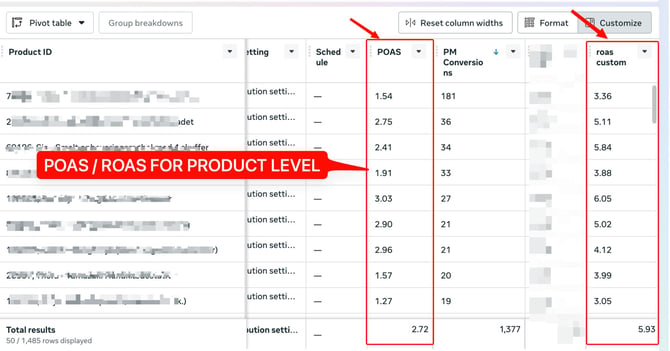
### Step 6: Create a custom ROAS metric
If Meta’s default ROAS metric is blank at product level, you can create your own custom metric.
Use this formula:
Purchase conversion value / Amount spent
This gives you a custom ROAS view at product level.
Example:
### Step 7: Create a custom POAS metric
If you are using ProfitMetrics data in Meta and your gross profit value is available as a custom value column, you can also create a POAS-style metric.
The logic would be:
PMGrossProfit Conversion Value / Amount spent
This allows you to review product performance based on profit instead of only revenue.
Please note that the exact column name depends on how your ProfitMetrics events and custom columns are set up in Meta.
### Step 8: Review the product-level results
Once the report is ready, review the product IDs with:
- High spend and strong ROAS / POAS
• High spend and weak ROAS / POAS
• Low spend but strong performance
• Products with clicks but no purchases
• Products with high purchase volume but weak profit efficiency
This can help you decide which products need more attention in your catalog strategy.
#### Recommended analysis
After exporting or reviewing the data, you can group products into simple performance buckets.
Example:
### Strong performers
Products with high ROAS / POAS and enough spend.
These products may be worth reviewing for scaling opportunities, stronger creative angles, or dedicated campaigns.
### Weak performers
Products with spend but low return.
These products may need better product images, pricing review, feed improvements, or exclusion from certain campaigns.
### Hidden opportunities
Products with strong return but low spend.
These products may be under-distributed by Meta and could be worth testing with more visibility.
### Low-data products
Products with very little spend or few clicks.
These should not be judged too quickly, as there may not be enough data yet.
#### **Important notes**
Please do not rely only on Meta’s default ROAS metric if it does not populate correctly at product level.
In that case, use a custom metric with the following formula:
Purchase conversion value / Amount spent
If you are using ProfitMetrics gross profit data in Meta, you can also use a custom POAS-style metric:
Gross profit value / Amount spent
Please also remember that Meta reporting is attribution-based. This means the numbers can differ from your backend or ProfitMetrics reporting.
For profitability decisions, we recommend comparing product-level Meta data with your actual business data.
#### When to use this report
This report is especially useful when:
- You are running Dynamic Product Ads
- You are using catalog sales campaigns
- You have a large product feed
- You want to understand which products are helping or hurting performance
- You want to export product-level data for deeper analysis
- You want to compare product performance by ROAS or POAS
#### **Final recommendation**
Product-level reporting in Meta can give you a much clearer view of catalog performance.
Instead of only looking at campaign-level results, you can see which specific products are driving value and which ones may need to be reviewed.
And that’s it.
You can now use product-level reporting in Meta Ads Manager to analyze POAS / ROAS more clearly across your catalog campaigns.
- [Getting Started](https://knowledge.profitmetrics.io/getting-started?hsLang=en#main-content)
- [Learn the Basics](https://knowledge.profitmetrics.io/getting-started?hsLang=en#learn-the-basics)
- [Prepare for Onboarding](https://knowledge.profitmetrics.io/getting-started?hsLang=en#prepare-for-onboarding)
- [Account Setup](https://knowledge.profitmetrics.io/getting-started?hsLang=en#account-setup)
- [E-commerce Platforms](https://knowledge.profitmetrics.io/e-commerce-platforms?hsLang=en#main-content)
- [Shopify](https://knowledge.profitmetrics.io/e-commerce-platforms?hsLang=en#shopify)
- [WooCommerce](https://knowledge.profitmetrics.io/e-commerce-platforms?hsLang=en#woocommerce)
- [Magento](https://knowledge.profitmetrics.io/e-commerce-platforms?hsLang=en#magento)
- [PrestaShop](https://knowledge.profitmetrics.io/e-commerce-platforms?hsLang=en#prestashop)
- [BigCommerce](https://knowledge.profitmetrics.io/e-commerce-platforms?hsLang=en#bigcommerce)
- [Shopware](https://knowledge.profitmetrics.io/e-commerce-platforms?hsLang=en#shopware)
- [DanDomain & Related](https://knowledge.profitmetrics.io/e-commerce-platforms?hsLang=en#dandomain-related)
- [Universal Integration (Clientside)](https://knowledge.profitmetrics.io/e-commerce-platforms?hsLang=en#universal-integration-clientside)
- [Universal Integration (Server-side Hybrid)](https://knowledge.profitmetrics.io/e-commerce-platforms?hsLang=en#universal-integration-server-side-hybrid)
- [Other Platforms](https://knowledge.profitmetrics.io/e-commerce-platforms?hsLang=en#other-platforms)
- [Developer Documentation](https://knowledge.profitmetrics.io/e-commerce-platforms?hsLang=en#developer-documentation)
- [Ad Channels](https://knowledge.profitmetrics.io/ad-channels?hsLang=en#main-content)
- [Google Ads](https://knowledge.profitmetrics.io/ad-channels?hsLang=en#google-ads)
- [Meta (Facebook/Instagram)](https://knowledge.profitmetrics.io/ad-channels?hsLang=en#meta-facebook-instagram)
- [Microsoft Bing Ads](https://knowledge.profitmetrics.io/ad-channels?hsLang=en#microsoft-bing-ads)
- [Google Analytics 4](https://knowledge.profitmetrics.io/ad-channels?hsLang=en#google-analytics-4)
- [Partner-ads](https://knowledge.profitmetrics.io/ad-channels?hsLang=en#partner-ads)
- [Other Channel Configuration](https://knowledge.profitmetrics.io/ad-channels?hsLang=en#other-channel-configuration)
- [Tracking & Conversion Setup](https://knowledge.profitmetrics.io/tracking-conversion-setup?hsLang=en#main-content)
- [Overview](https://knowledge.profitmetrics.io/tracking-conversion-setup?hsLang=en#overview)
- [Conversion Booster for Google Ads](https://knowledge.profitmetrics.io/tracking-conversion-setup?hsLang=en#conversion-booster-for-google-ads)
- [Conversion Booster for Meta](https://knowledge.profitmetrics.io/tracking-conversion-setup?hsLang=en#conversion-booster-for-meta)
- [Conversion Booster Custom Pixels](https://knowledge.profitmetrics.io/tracking-conversion-setup?hsLang=en#conversion-booster-custom-pixels)
- [Enhanced Conversions](https://knowledge.profitmetrics.io/tracking-conversion-setup?hsLang=en#enhanced-conversions)
- [Shopping Booster](https://knowledge.profitmetrics.io/shopping-booster?hsLang=en#main-content)
- [Overview & Setup](https://knowledge.profitmetrics.io/shopping-booster?hsLang=en#overview-setup)
- [Supplemental Feeds](https://knowledge.profitmetrics.io/shopping-booster?hsLang=en#supplemental-feeds)
- [Campaigns & Labels](https://knowledge.profitmetrics.io/shopping-booster?hsLang=en#campaigns-labels)
- [Troubleshooting](https://knowledge.profitmetrics.io/shopping-booster?hsLang=en#troubleshooting)
- [Product Feed & Costs](https://knowledge.profitmetrics.io/product-feed-costs?hsLang=en#main-content)
- [Product Feed](https://knowledge.profitmetrics.io/product-feed-costs?hsLang=en#product-feed)
- [Shipping & Payment Costs](https://knowledge.profitmetrics.io/product-feed-costs?hsLang=en#shipping-payment-costs)
- [Expenses](https://knowledge.profitmetrics.io/product-feed-costs?hsLang=en#expenses)
- [Dashboard, Orders & Reporting](https://knowledge.profitmetrics.io/dashboard-orders-reporting?hsLang=en#main-content)
- [Dashboard & Orders](https://knowledge.profitmetrics.io/dashboard-orders-reporting?hsLang=en#dashboard-orders)
- [Looker Studio](https://knowledge.profitmetrics.io/dashboard-orders-reporting?hsLang=en#looker-studio)
- [Google BigQuery](https://knowledge.profitmetrics.io/dashboard-orders-reporting?hsLang=en#google-bigquery)
- [Account & Billing](https://knowledge.profitmetrics.io/account-billing?hsLang=en#main-content)
- [Users & Access](https://knowledge.profitmetrics.io/account-billing?hsLang=en#users-access)
- [Billing & Invoices](https://knowledge.profitmetrics.io/account-billing?hsLang=en#billing-invoices)
- [Privacy & Consent](https://knowledge.profitmetrics.io/privacy-consent?hsLang=en#main-content)
- [GDPR](https://knowledge.profitmetrics.io/privacy-consent?hsLang=en#gdpr)
- [Consent Management Platforms](https://knowledge.profitmetrics.io/privacy-consent?hsLang=en#consent-management-platforms)
- [Google Consent Mode](https://knowledge.profitmetrics.io/privacy-consent?hsLang=en#google-consent-mode)
- [For Agencies](https://knowledge.profitmetrics.io/for-agencies?hsLang=en#main-content)
- [Getting Started as an Agency](https://knowledge.profitmetrics.io/for-agencies?hsLang=en#getting-started-as-an-agency)
- [Agency Certification](https://knowledge.profitmetrics.io/for-agencies?hsLang=en#agency-certification)
- [Shopify](https://knowledge.profitmetrics.io/shopify?hsLang=en)
- [PrestaShop](https://knowledge.profitmetrics.io/prestashop?hsLang=en)
- [Google Ads](https://knowledge.profitmetrics.io/google-ads?hsLang=en#main-content)
- [troubleshoot](https://knowledge.profitmetrics.io/google-ads?hsLang=en#troubleshoot)
- [Meta (Facebook / Instagram)](https://knowledge.profitmetrics.io/meta-facebook-instagram?hsLang=en)
- [Uncategorized](https://knowledge.profitmetrics.io/uncategorized?hsLang=en)
- [Billing](https://knowledge.profitmetrics.io/billing?hsLang=en)
- [Google Sheets](https://knowledge.profitmetrics.io/google-sheets?hsLang=en)
- [Account](https://knowledge.profitmetrics.io/account?hsLang=en)
- [Ideal Shop](https://knowledge.profitmetrics.io/ideal-shop?hsLang=en)
[](https://profitmetrics.io)
[mailto:support@profitmetrics.io](mailto:support@profitmetrics.io)
Copyright © 2026, ProfitMetrics ApS