
Login access: Please use the email associated with your account or the email address linked to your billing profile, where you usually receive your invoices.
- Click here to log in in your Billing Profile and manage your suscription.
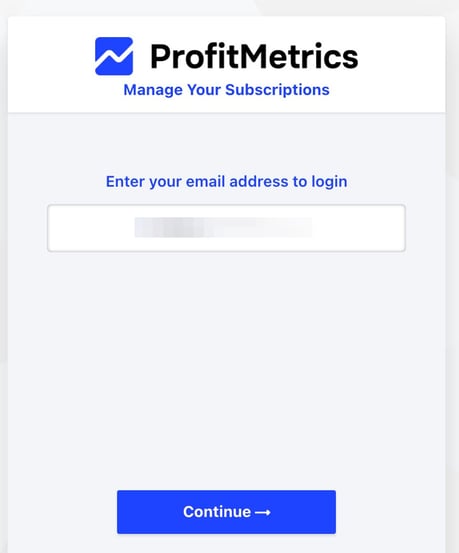
- Enter your email address to login and click "Continue"
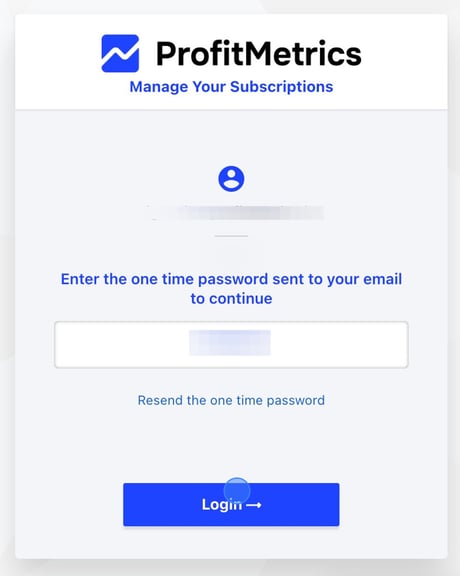
- Enter the one time password sent to your email to continue and click "Login"
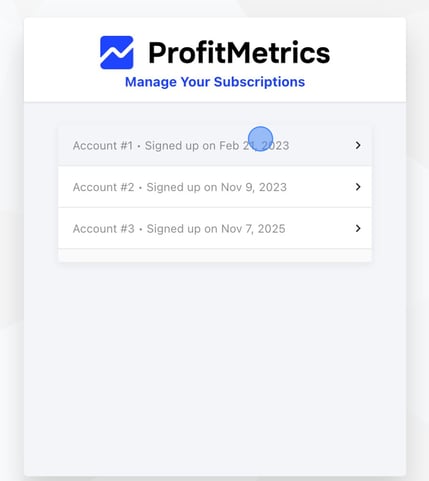
- Choose the account subscription you want to manage if you have more than one.
-
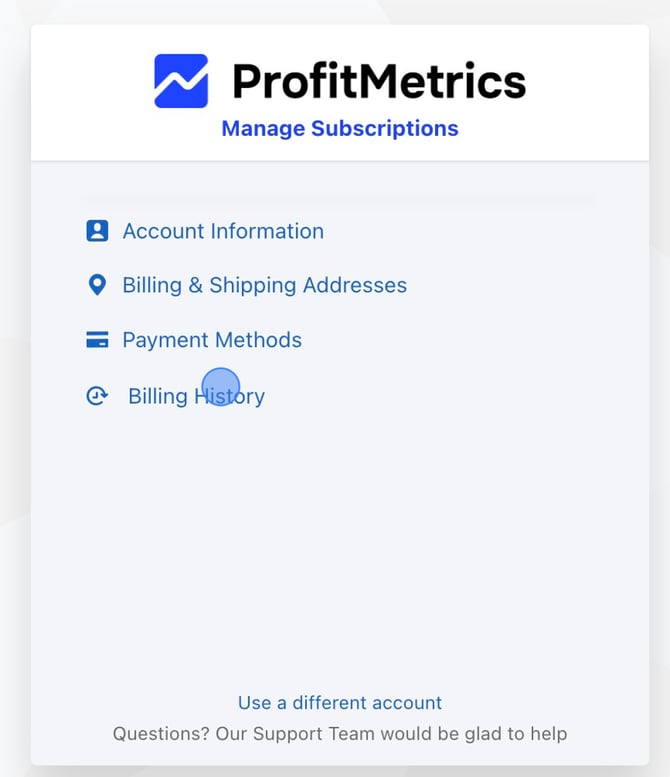
You will access the Manage Subscriptions screen. In this section, you will see the following menu options:
-
Account Information: to view or update account details.
-
Billing & Shipping Addresses: to manage billing and shipping addresses.
-
Payment Methods: to add or update payment methods.
-
Billing History: to view billing history.
To review invoices, for example, you should click on “Billing History”. Here, you can see all issued invoices, view their details, and download them if needed.
That's it — from here you can manage your suscription and review your invoices ✅
-