---
title: Connecting ProfitMetrics to Claude or ChatGPT via MCP
description: Connecting ProfitMetrics to Claude or ChatGPT via MCP
---
[Skip to content](https://knowledge.profitmetrics.io/connecting-profitmetrics-to-claude-or-chatgpt-via-mcp#main-content)
[](https://knowledge.profitmetrics.io/?hsLang=en)
Open main navigation
Close main navigation
- [Contact Support](https://knowledge.profitmetrics.io/kb-ticket/new)
[Contact Support](https://knowledge.profitmetrics.io/kb-ticket/new?hsLang=en)
How can we help you?
- There are no suggestions because the search field is empty.
1. [Knowledge base](https://knowledge.profitmetrics.io/?hsLang=en)
2. [Dashboard, Orders & Reporting](https://knowledge.profitmetrics.io/dashboard-orders-reporting?hsLang=en)
# Connecting ProfitMetrics to Claude or ChatGPT via MCP
## How to generate an access token, register an agent connection, and link ProfitMetrics to an AI platform using the Model Context Protocol (MCP).
ProfitMetrics supports connecting your account to AI platforms such as Claude or ChatGPT using the Model Context Protocol (MCP). This lets you ask an AI assistant questions directly about your ProfitMetrics data. Setting this up involves three steps: generating an access token, registering an agent connection, and adding the connection details into your chosen AI platform. This article walks through all three.
**NOTE:** Shopping Booster data is not currently supported through the MCP connection.
**If you have an agency account and wish to connect the ProfitMetrics MCP server to multiple customers, [please follow this guide](https://knowledge.profitmetrics.io/connecting-profitmetrics-agency-to-claude-or-chatgpt-via-mcp?hsLang=en).**
---
### Step 1: Generate an access token
Go to **Account** \> **Access Tokens** and click **Generate New Token**.
| Setting | What to do |
| --- | --- |
| Token name | Give the token any name you like so you can identify it later. |
| Expiration date | Set an expiration date if you want one, or choose no expiration. |
| Site access | Choose **Full access** to allow access to all your websites, or click **Custom** to select a single website. |
| Scopes | Under Scopes, select both **Metrics Read** and **MCP Server Access ONLY** |
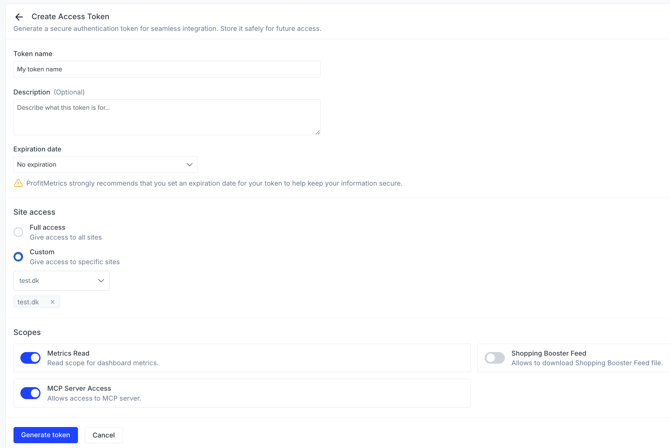
Click **Generate Token**. You can close the token window afterwards — the token itself doesn't need to be copied or saved anywhere for this setup.
---
### Step 2: Register an agent connection
Go to **Accounts** and then **Agent Connections**.
| Field | What to enter |
| --- | --- |
| Connection name | Give the connection any name you like, for example `My MCP connector`. |
| Redirect URL | Choose Claude or ChatGPT, depending on which AI platform you're using. The matching redirect URI is added automatically. You can also enter a custom redirect URI if you're connecting a different system. |
| Scopes | Keep **OpenID** and **Sites Read** checked. Also check **Metrics Read** to ensure you can access the dashboard data |
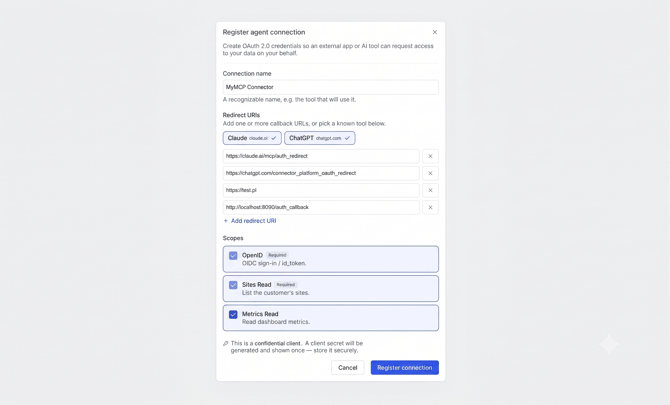
Click **Register Connection**. This generates a client ID and client secret, which you'll need in the next step.
---
### Step 3: Add the connection to your AI platform
With the client ID and client secret from Step 2, you can now connect ProfitMetrics inside your AI platform.
The steps below use **Claude** as an example:
| Step | Action |
| --- | --- |
| 1 | Click the plus button in a chat and select **Connectors**. |
| 2 | Click **Add Connector**, then **Add Custom Connector**. |
| 3 | Give the connector any name you like. |
| 4 | In the remote server URL field, enter `https://api.my.profitmetrics.io/mcp` |
| 5 | Open **Advanced Settings** and enter the client ID, then the client secret underneath it. |
| 6 | Leave other default settings as they are |
| 7 | Click **Add**. |
| 8 | Connect to your ProfitMetrics account to authorise |
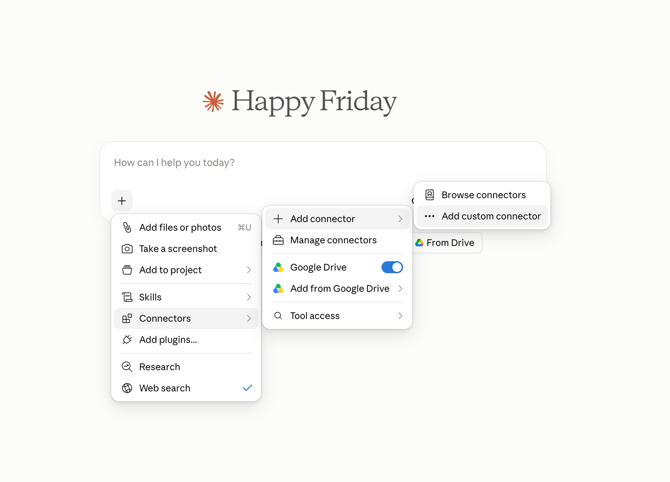
Once the connector is added, you can start asking your AI platform questions about your ProfitMetrics data.
---
### Troubleshooting
| Symptom | Check |
| --- | --- |
| **Connector fails to connect** | Check that the client ID and client secret were copied correctly from the Agent Connections page, with no extra spaces. |
| **AI platform can't find any data** | Confirm the access token's site access covers the website you're asking about, and **Metrics Read** and **MCP Server Access** were both selected as part of the scopes. |
| **Shopping Booster fee data missing from answers** | This is expected — Shopping Booster fee data isn't currently available through the MCP connection. |
| **Wrong redirect URI error** | Make sure you selected the correct platform (Claude or ChatGPT) when registering the connection, or entered the correct custom redirect URI if using another system. |
| **Claude chat saying there is a 500 error** | In your [access token settings](https://my.profitmetrics.io/customer/access-tokens.php), please select **ONLY** **Metrics Read** and **MCP Server Access** |
- [Getting Started](https://knowledge.profitmetrics.io/getting-started?hsLang=en#main-content)
- [Learn the Basics](https://knowledge.profitmetrics.io/getting-started?hsLang=en#learn-the-basics)
- [Prepare for Onboarding](https://knowledge.profitmetrics.io/getting-started?hsLang=en#prepare-for-onboarding)
- [Account Setup](https://knowledge.profitmetrics.io/getting-started?hsLang=en#account-setup)
- [E-commerce Platforms](https://knowledge.profitmetrics.io/e-commerce-platforms?hsLang=en#main-content)
- [Shopify](https://knowledge.profitmetrics.io/e-commerce-platforms?hsLang=en#shopify)
- [WooCommerce](https://knowledge.profitmetrics.io/e-commerce-platforms?hsLang=en#woocommerce)
- [Magento](https://knowledge.profitmetrics.io/e-commerce-platforms?hsLang=en#magento)
- [PrestaShop](https://knowledge.profitmetrics.io/e-commerce-platforms?hsLang=en#prestashop)
- [BigCommerce](https://knowledge.profitmetrics.io/e-commerce-platforms?hsLang=en#bigcommerce)
- [Shopware](https://knowledge.profitmetrics.io/e-commerce-platforms?hsLang=en#shopware)
- [DanDomain & Related](https://knowledge.profitmetrics.io/e-commerce-platforms?hsLang=en#dandomain-related)
- [Universal Integration (Clientside)](https://knowledge.profitmetrics.io/e-commerce-platforms?hsLang=en#universal-integration-clientside)
- [Universal Integration (Server-side Hybrid)](https://knowledge.profitmetrics.io/e-commerce-platforms?hsLang=en#universal-integration-server-side-hybrid)
- [Other Platforms](https://knowledge.profitmetrics.io/e-commerce-platforms?hsLang=en#other-platforms)
- [Developer Documentation](https://knowledge.profitmetrics.io/e-commerce-platforms?hsLang=en#developer-documentation)
- [Ad Channels](https://knowledge.profitmetrics.io/ad-channels?hsLang=en#main-content)
- [Google Ads](https://knowledge.profitmetrics.io/ad-channels?hsLang=en#google-ads)
- [Meta (Facebook/Instagram)](https://knowledge.profitmetrics.io/ad-channels?hsLang=en#meta-facebook-instagram)
- [Microsoft Bing Ads](https://knowledge.profitmetrics.io/ad-channels?hsLang=en#microsoft-bing-ads)
- [Google Analytics 4](https://knowledge.profitmetrics.io/ad-channels?hsLang=en#google-analytics-4)
- [Partner-ads](https://knowledge.profitmetrics.io/ad-channels?hsLang=en#partner-ads)
- [Other Channel Configuration](https://knowledge.profitmetrics.io/ad-channels?hsLang=en#other-channel-configuration)
- [Tracking & Conversion Setup](https://knowledge.profitmetrics.io/tracking-conversion-setup?hsLang=en#main-content)
- [Overview](https://knowledge.profitmetrics.io/tracking-conversion-setup?hsLang=en#overview)
- [Conversion Booster for Google Ads](https://knowledge.profitmetrics.io/tracking-conversion-setup?hsLang=en#conversion-booster-for-google-ads)
- [Conversion Booster for Meta](https://knowledge.profitmetrics.io/tracking-conversion-setup?hsLang=en#conversion-booster-for-meta)
- [Conversion Booster Custom Pixels](https://knowledge.profitmetrics.io/tracking-conversion-setup?hsLang=en#conversion-booster-custom-pixels)
- [Enhanced Conversions](https://knowledge.profitmetrics.io/tracking-conversion-setup?hsLang=en#enhanced-conversions)
- [Shopping Booster](https://knowledge.profitmetrics.io/shopping-booster?hsLang=en#main-content)
- [Overview & Setup](https://knowledge.profitmetrics.io/shopping-booster?hsLang=en#overview-setup)
- [Supplemental Feeds](https://knowledge.profitmetrics.io/shopping-booster?hsLang=en#supplemental-feeds)
- [Campaigns & Labels](https://knowledge.profitmetrics.io/shopping-booster?hsLang=en#campaigns-labels)
- [Troubleshooting](https://knowledge.profitmetrics.io/shopping-booster?hsLang=en#troubleshooting)
- [Product Feed & Costs](https://knowledge.profitmetrics.io/product-feed-costs?hsLang=en#main-content)
- [Product Feed](https://knowledge.profitmetrics.io/product-feed-costs?hsLang=en#product-feed)
- [Shipping & Payment Costs](https://knowledge.profitmetrics.io/product-feed-costs?hsLang=en#shipping-payment-costs)
- [Expenses](https://knowledge.profitmetrics.io/product-feed-costs?hsLang=en#expenses)
- [Dashboard, Orders & Reporting](https://knowledge.profitmetrics.io/dashboard-orders-reporting?hsLang=en#main-content)
- [Dashboard & Orders](https://knowledge.profitmetrics.io/dashboard-orders-reporting?hsLang=en#dashboard-orders)
- [Looker Studio](https://knowledge.profitmetrics.io/dashboard-orders-reporting?hsLang=en#looker-studio)
- [Google BigQuery](https://knowledge.profitmetrics.io/dashboard-orders-reporting?hsLang=en#google-bigquery)
- [Account & Billing](https://knowledge.profitmetrics.io/account-billing?hsLang=en#main-content)
- [Users & Access](https://knowledge.profitmetrics.io/account-billing?hsLang=en#users-access)
- [Billing & Invoices](https://knowledge.profitmetrics.io/account-billing?hsLang=en#billing-invoices)
- [Privacy & Consent](https://knowledge.profitmetrics.io/privacy-consent?hsLang=en#main-content)
- [GDPR](https://knowledge.profitmetrics.io/privacy-consent?hsLang=en#gdpr)
- [Consent Management Platforms](https://knowledge.profitmetrics.io/privacy-consent?hsLang=en#consent-management-platforms)
- [Google Consent Mode](https://knowledge.profitmetrics.io/privacy-consent?hsLang=en#google-consent-mode)
- [For Agencies](https://knowledge.profitmetrics.io/for-agencies?hsLang=en#main-content)
- [Getting Started as an Agency](https://knowledge.profitmetrics.io/for-agencies?hsLang=en#getting-started-as-an-agency)
- [Agency Certification](https://knowledge.profitmetrics.io/for-agencies?hsLang=en#agency-certification)
- [Shopify](https://knowledge.profitmetrics.io/shopify?hsLang=en)
- [PrestaShop](https://knowledge.profitmetrics.io/prestashop?hsLang=en)
- [Google Ads](https://knowledge.profitmetrics.io/google-ads?hsLang=en#main-content)
- [troubleshoot](https://knowledge.profitmetrics.io/google-ads?hsLang=en#troubleshoot)
- [Meta (Facebook / Instagram)](https://knowledge.profitmetrics.io/meta-facebook-instagram?hsLang=en)
- [Uncategorized](https://knowledge.profitmetrics.io/uncategorized?hsLang=en)
- [Billing](https://knowledge.profitmetrics.io/billing?hsLang=en)
- [Google Sheets](https://knowledge.profitmetrics.io/google-sheets?hsLang=en)
- [Account](https://knowledge.profitmetrics.io/account?hsLang=en)
- [Ideal Shop](https://knowledge.profitmetrics.io/ideal-shop?hsLang=en)
[](https://profitmetrics.io)
[mailto:support@profitmetrics.io](mailto:support@profitmetrics.io)
Copyright © 2026, ProfitMetrics ApS