NOTE:
This is an optional, reporting-only feature that allows you to view data from your Google Ads account directly within ProfitMetrics.
Before setting this up, make sure to complete your Conversion Booster setup. The relevant events will only become available for selection in Marketing Channels once the integration has been completed and data received.
The data shown in this dashboard is reported directly by Google and is not de-duplicated across channels. This means that the same conversion may be counted on multiple platforms if a user interacts with ads on each.
Part 1: Configure conversions for Google Ads
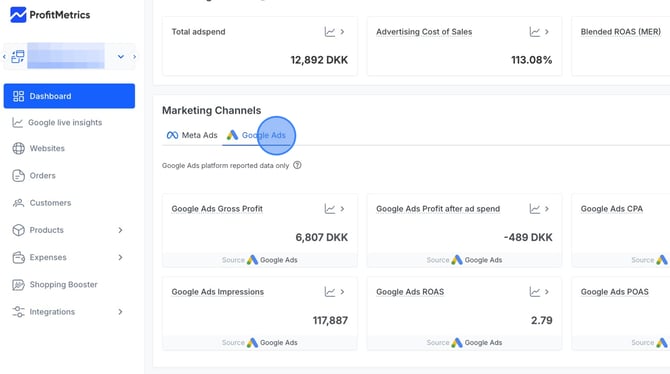
- In your Dashboard, scroll down to the Marketing Channels section. Select the Google Ads tab:
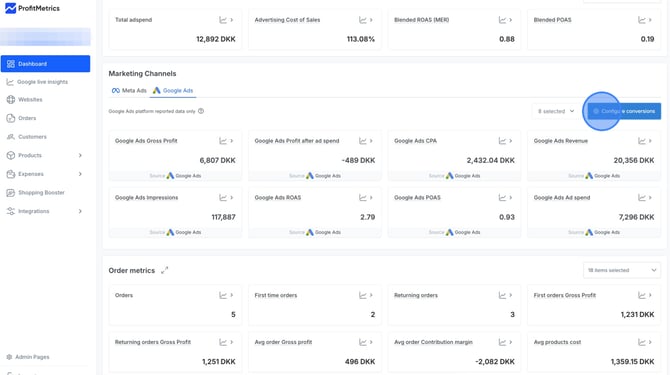
- Click Configure conversions:
- Click the pencil icon to edit conversions.
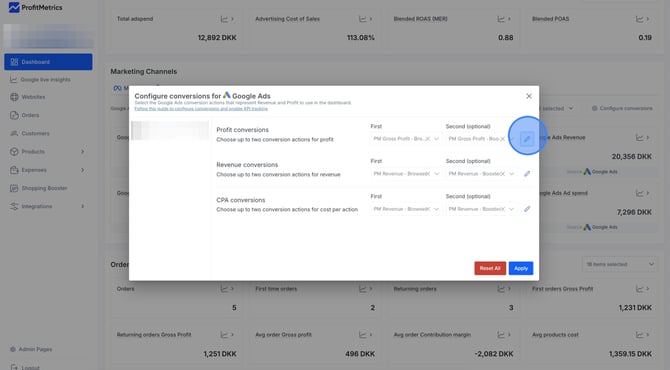
- For profit conversions, choose the conversion action(s) that contains profit. Typically, this will be 'PM Gross Profit Browser' (First) and 'PM Gross Profit Booster' (Second).
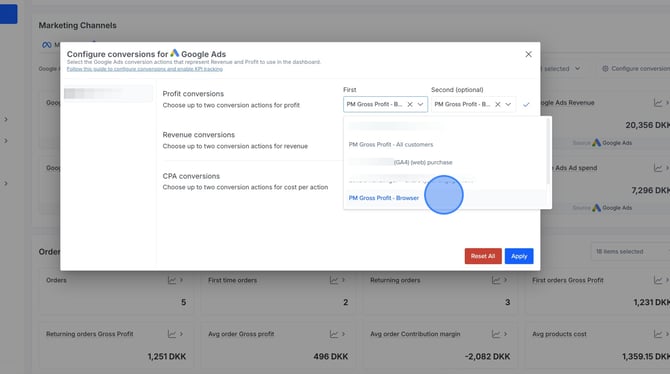
- For revenue conversions, choose the conversion action(s) that contains revenue. Typically, this will be 'PM Revenue Browser' (First) and 'PM Revenue Booster' (Second).Click the pencil icon to edit conversions.
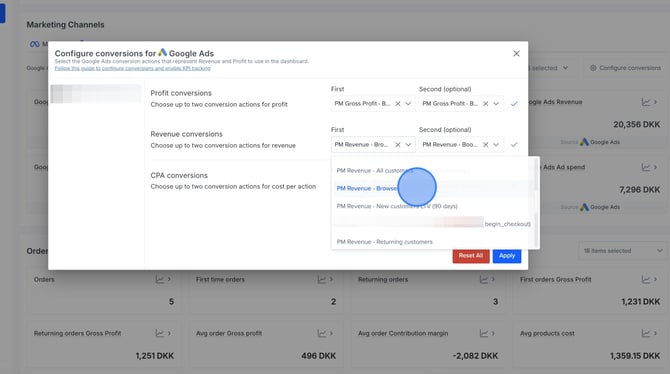
- For CPA conversions, choose the conversion action(s) that you are currently using to optimise your ads - i.e. your primary conversion action(s).
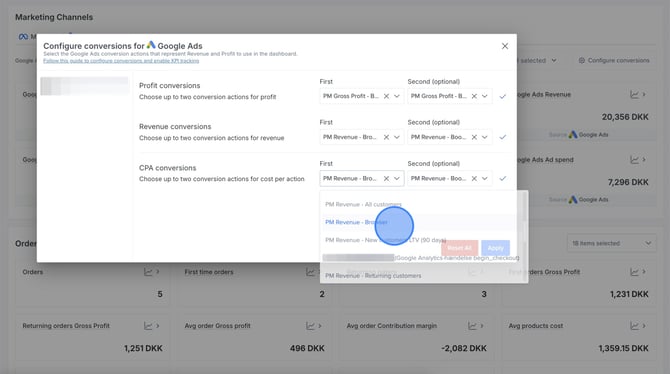
This determines how the Cost per Acquisition (CPA) is calculated in the dashboard — for example, if you optimise for revenue conversion action(s), the CPA shown will reflect the cost per revenue purchase. - If you use ProfitMetrics' Conversion Booster for tracking, please make sure to choose both browser & booster conversion actions in steps a, b, and c to get the total number of conversions.
- For profit conversions, choose the conversion action(s) that contains profit. Typically, this will be 'PM Gross Profit Browser' (First) and 'PM Gross Profit Booster' (Second).
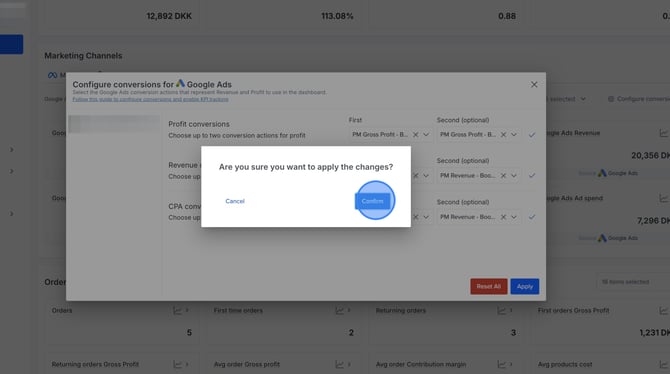
- Click Apply.
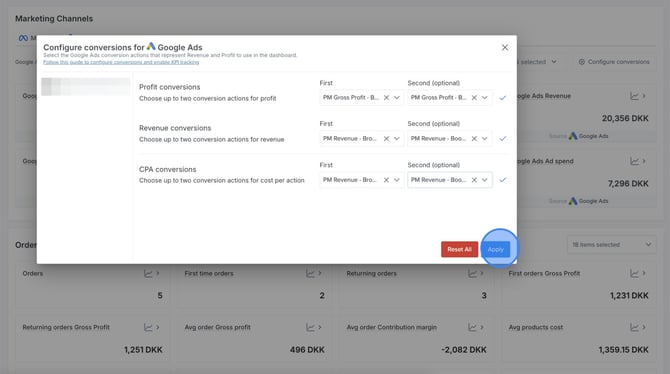
- Click Confirm.
Looking to configure Marketing Channels for Meta Ads? Click here.
Part 2: Can't see Marketing Channels in your Dashboard?
If you can't see the Marketing Channels section in your Dashboard, follow these steps.
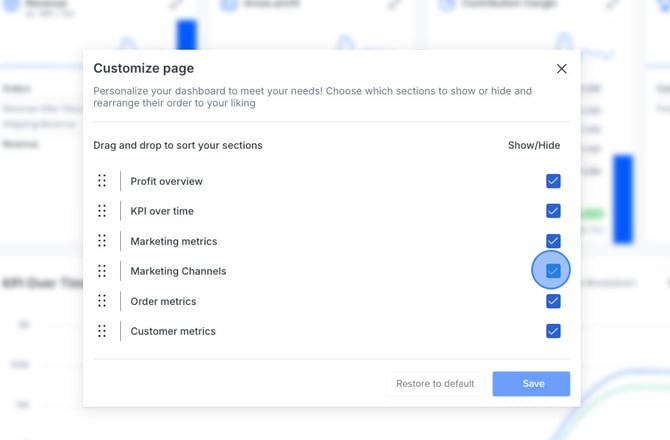
- In your Dashboard, click the configure icon in the top right corner.
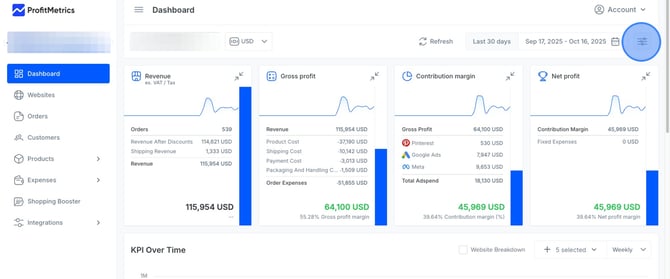
- Check the box for Marketing Channels and click Save.